Setup and Configure vSPhere Distributed Switch on vSphere 5.0

vSphere Distributed Switch which is referred as vDS functions as a single virtual switch across all associated ESXi hosts.

Like a vSwitch, virtual Distributed Switch provides connectivity to VMs as well as VM-Kernel interfaces.

vDS is connected to physical network via the NICs available on Host and thus these NIC’s acts as an “UpLinks” for our vDS.

To have a functioning vDS we need 2 ESXi Host and 2 NIC’s per Host.
In this Lab we have 2 Hosts and 2 NICs on each Host, 1 is an OnBoard NIC whereas an additional PCI-E NIC added. (
NIC Info)

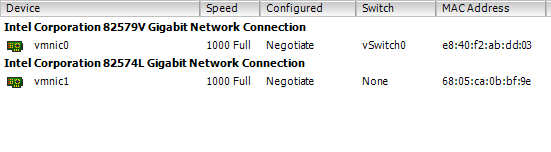
Lets check the NICs on each host.
Select the Host and under “Configuration / Network Adapters” check for the available free NIC, Free in the sense that it is not associated to any vSwitch. You can see under the “Switch” column it says “None” whereas for the vmnic0 which is an onBoard NIC is connected to vSwitch0
image

Now we will go ahead to create a new vSphere Distributed Switch by going to “Networking” and selecting “New vSphere Distributed Switch” option.
image

Lets go through the wizard, where ever necessary I will explain the selected option.
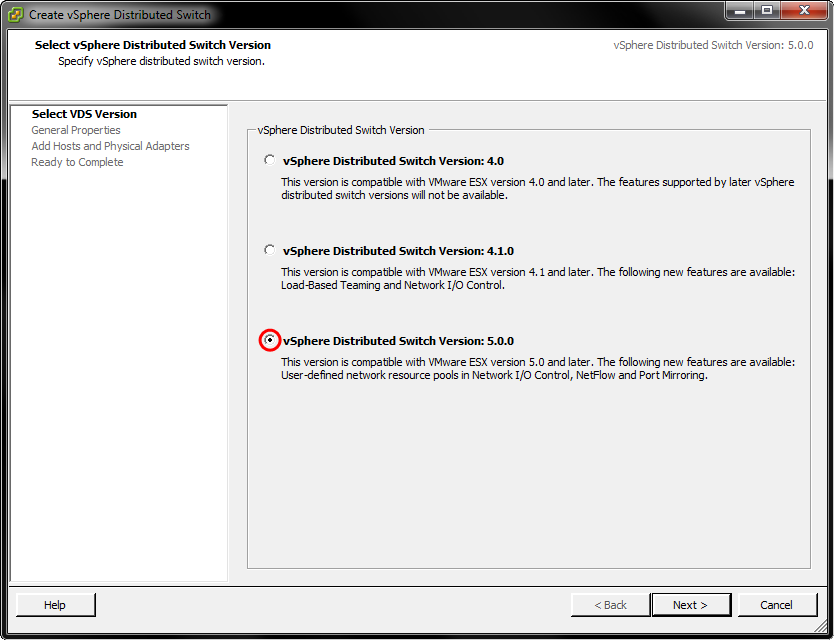
image

For “Number of Uplink Ports” we will select ‘2’ . what we mean by selecting 2 is that we have 2 NIC (UpLinks) on each Host.
image
We will add the Hosts and connect the physical adapters to this vDS later.
image

We will create the “Port Group” later.
Image-0041

Once the wizard is complete we will have our 1st distributed switch named as “dvSwitch”.
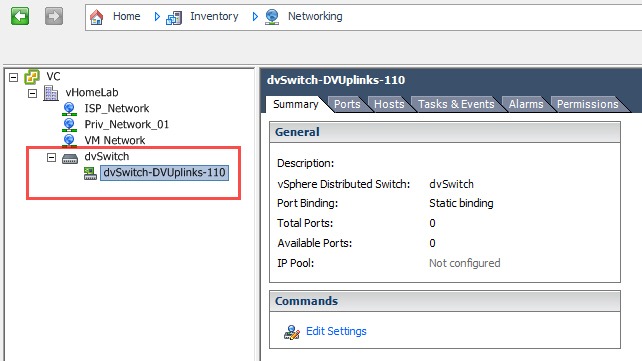
Image-0042

We will rename the dvSwitch-DVUplinks-110 to “dvSwitch-DVUplinks” by selecting “Edit Settings” Image-0043
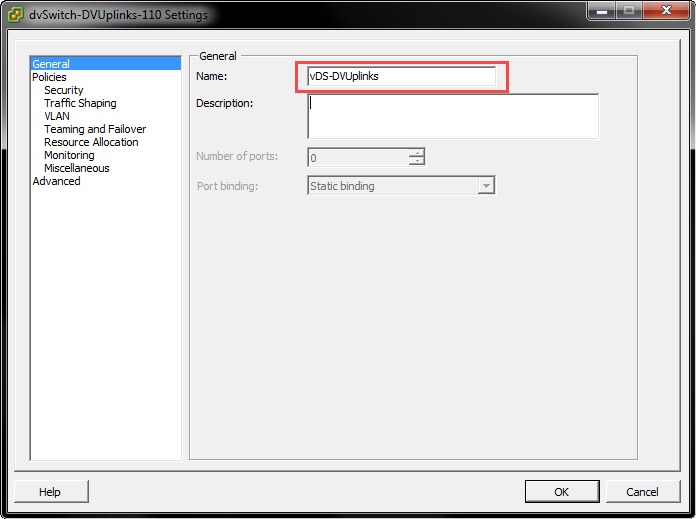
Image-0044

Now, let us rename the Uplinks, which will be helpful later.
Select the “dvSwitch” under “Configuration” select the “Settings” icon
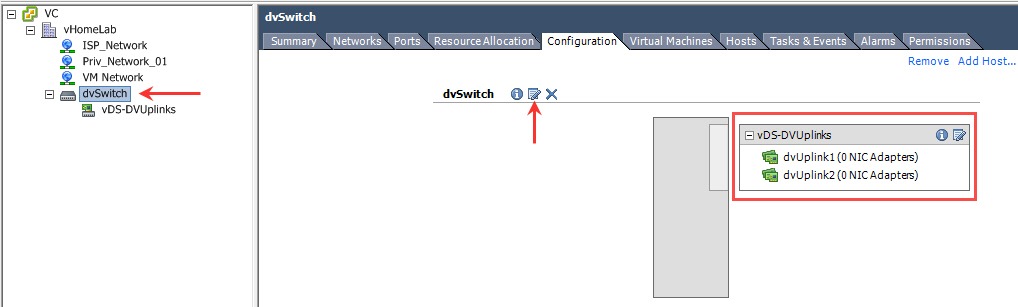
Image-0045

Click “Edit Uplink Names” and lets name each uplink which will describe which NIC it is on our physical Host, Like I have named “OnBoard” and “PCI-E”
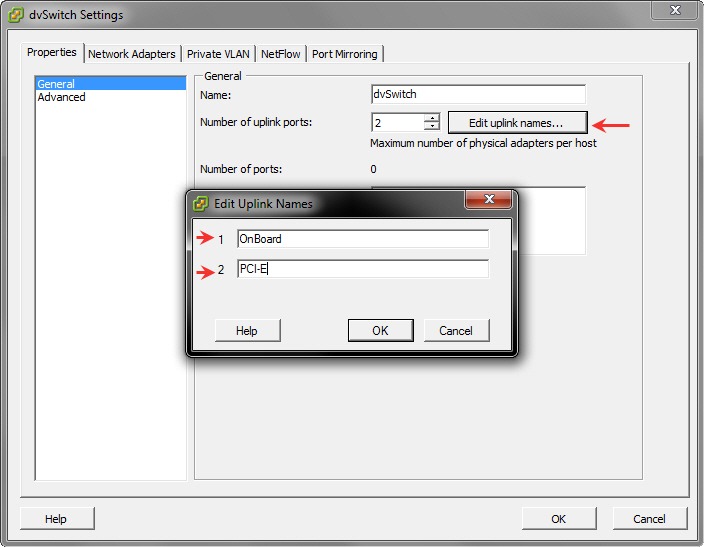
Image-0047
Image-0048

Now we will create the “Distributed Port Groups” Select “”New Port Group” and name the port group as “dv-VM-Network” and “Number of ports” as ‘128’
Which means there will be 128 ports associated with this port group.
We are not using any VLAN and hence will be “None” as default.

Image-0049

In case if you need to change Number of Ports or Name, you can go under “Edit Settings” options and do the changes.
In the “Summary” you will also find Total Ports and Available Ports which is helpful information which you start using this port group.
image

If you check the “Ports” tab you will see list of all Ports from 0-127.
image

Now we will add “Hosts” 
Select “dvSwitch / Add Host” and select appropriate NIC from each Host.
In case if you are confused which NIC to select (if you have more NICs) you can see “View Details…” link and check the NIC that you are using.
image

Next, the wizard will ask you to Migrate “Management Network” from vSwitch0 to a Port group on dvSwitch. we will not migrate for now.
so, keep the defaults as is and click Next.
image

In this section we will migrate VMs (Powered On and Powered Off) from vSwitch0 to dvSwitch. Under the “Destination Port Group” Column you can select the new Port Group (it’s a dropdown list)

You can see I am moving DC, Exchange Mailbox Server, Client Access Server, Hub Transport Server from “VM Network” Port Group which is on vSwitch0 to “dv-VM-Network” Port Group which is on dvSwitch. These VMs are currently Powered On on 192.168.1.101 Host.
Also, I am moving a Powered Off VM i.e, INT-CA a RootCA VM.

Also, check the VC VM which is a “vCenter Server” I am not moving it at present, coz we are creating/configuring Distributed Switch on vCenter server, to avoid loss of connectivity I will move vCenter later.

There is also a “Vyatta Router” VM which have 3 vNICs (virtual NIC) from these I am moving 1 vNIC to “dv-VM-Network” Port Group.
image

From 192.168.1.102 Host, I will be moving 1 vNIC of another “Vyatta Router” VM and a XP Client VM to new Port Group.
image

Here you will see all the VMs that we are migrating from vSwitch0 to dvSwitch.
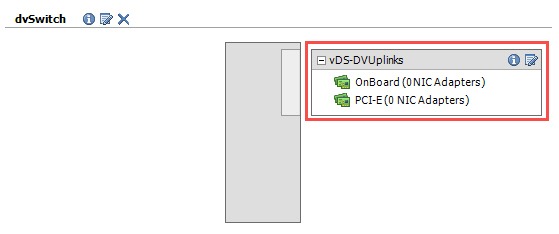
Under vDS-DVUplinks you will see something strange. ie., The vmnic1 from both Hosts is shown under “OnBoard” uplink.
The Names that we have given to Uplink Group is Logical grouping, vSphere does not know which NIC is connected where (according to our naming).
How vsphere works is vmnic0 from each Host will goes under DVUplink1 and vmnic1 goes under DVUplink2 and so on…
In our case, vmnic0 which is an On-Board NIC is connected to vSwitch0 and which adding Host to dvSwitch we did not select vmnic0, we only selected vmnic1, when the time came to put vmnic under proper group, the only available vmnic was vmnic1 and that’s the reason why vmnic1 is shown under “OnBoard”.
We will correct this later. lets Finish this wizard and the dvSwitch is ready.

Image-0056
Check the Recent Tasks section at the bottom to see the updates going on.
Image-0057
The VMs network adapters are getting reconfigured and completed.
Image-0058
Check the “Summary” tab of any VM
Image-0065
Now lets correct the vmnic1 placement.
Go to the Host, under “Configuration” tab select “Networking” and click on “vSphere Distributed Switch” .
Click “”Manage Physical Adapters…” you will see vmnic1 under OnBoard, click “Remove”
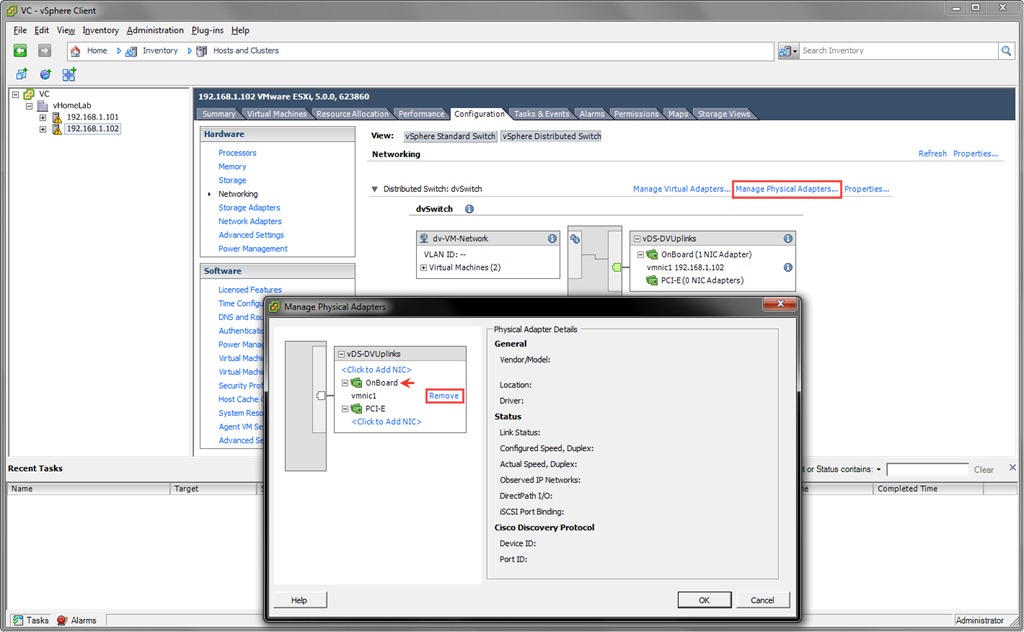
Image-0061

Now Click on “Add NIC” and select vmnic1.
Image-0062
Image-0063
Repeat the same steps on other Host too..
Image-0064

Lets go and check the dvSwitch / Configuration. OK, so its as required.

image

Now its time to move “vCenter Server” to dvSwitch by going to the properties of vCenter VM and select the Network Adapter, select “dv-VM-Network” Port Group from dropdown list, and the VM is on dvSwitch.
image

**Moving Management Network (VMKernel Port) to dvSwitch**


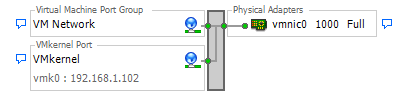
Lets check the management network on both Hosts.

192.168.1.101
image
192.168.1.102
image
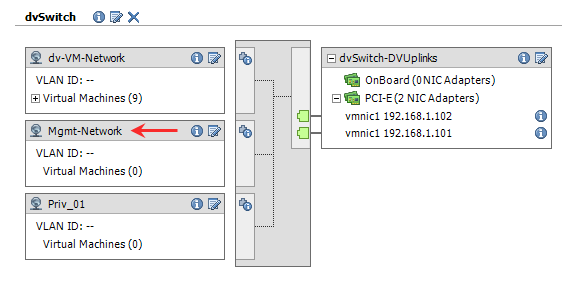
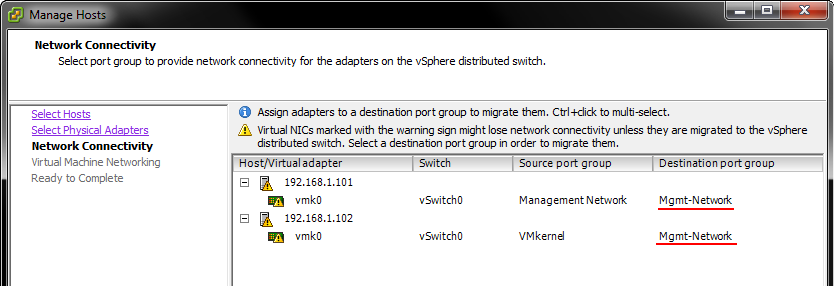
I have created a new Port Group on dvSwitch for VMKernel Port named “Mgmt-Network”
image

On dvSwitch / Configuration tab, select “Manage Hosts…” option and select both the Hosts.

imageimage

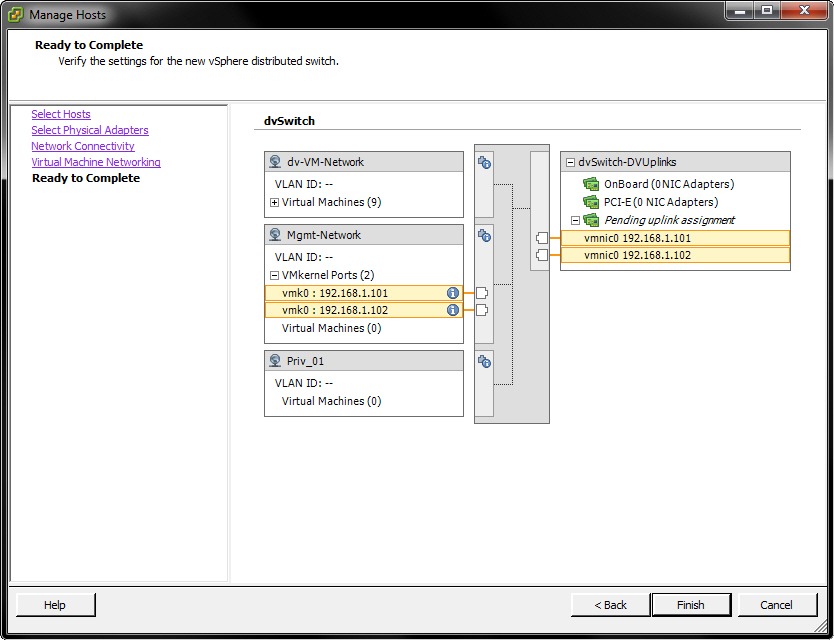
Select “Mgmt-Network” as Destination Port Group from the dropdown.
image
Image-0084

Once completed, you can see the VMKernel Ports are available under “Mgmt-Network” and vmnic0 is listed under “OnBoard”.
As I explained before, vmnic0 falls under DVUplink1 (which we renamed to OnBoard) and it did.
image

Finally, All bits are now together and the final vSphere Distributed Switch is as shown below.
image

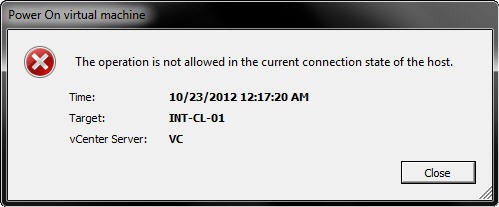
Error: The Operation is not allowed in current state of the Host–while Powering On a Virtual Machine

At least once in your vSphere environment you will face an unfamiliar error. It’s a vague error message which popup when you try to power on a virtual machine.
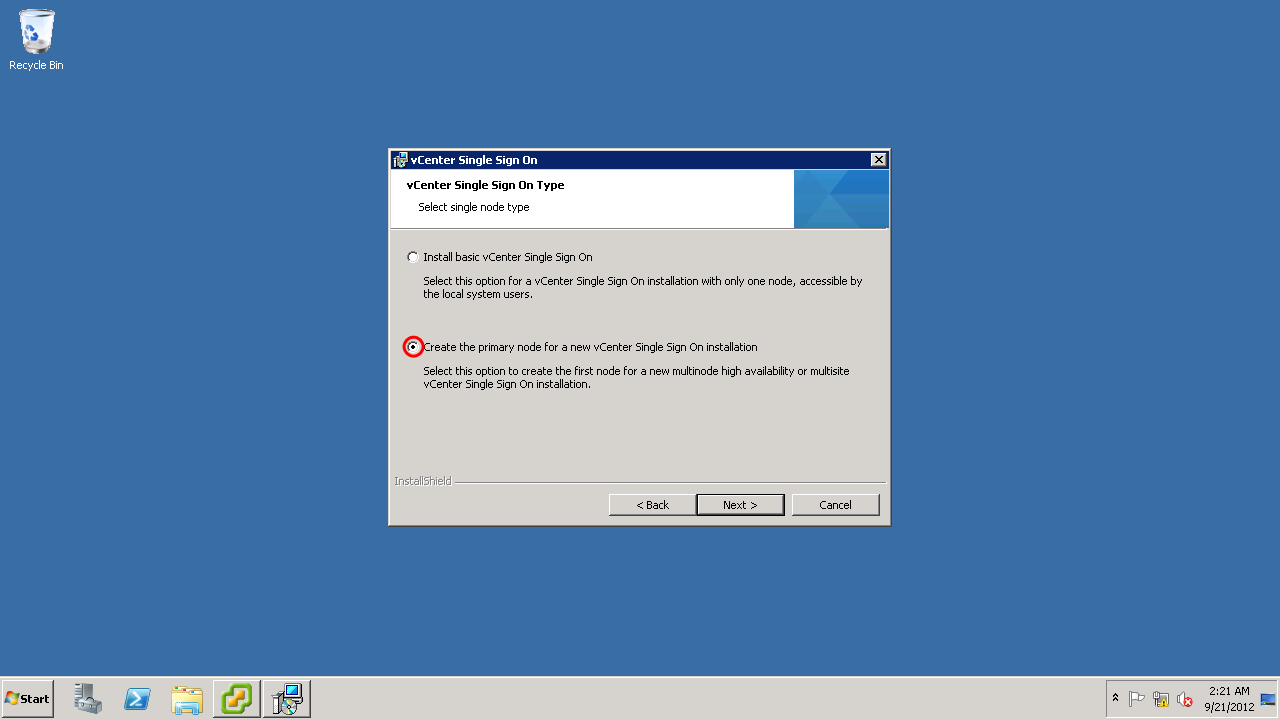
Image-0022

Not really sure what causes this error all of a sudden, need to investigate more.

To fix this issue lets check the state of Host.
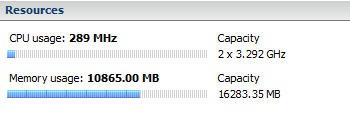
Host is running, but if you notice the summary page and look at the “Resources” section you will find the data for CPU / Memory Usage is not being pulled.

Image-0023
When I faced this error 1st, I did a restart of Host which solved the problem, but in some cases you can’t take this step unless you have planned to vMotion the VM’s to another host.

Another way is to “Remove” the host from vCenter and “Add” back again.

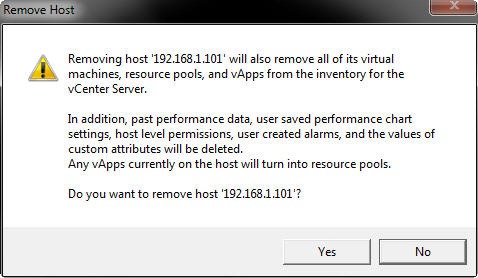
To remove the host, right click on the host and select “Remove”

Image-0024

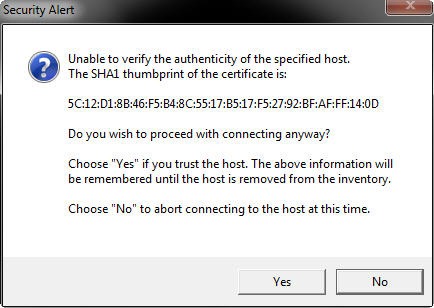
This action will give a security alert, Click “Yes” to move ahead.

Image-0025

You can monitor the “Recent Tasks” for the status of your action.

Image-0026

Lets “Add” the Host again.
Right click on the “Datacenter Name” and select “Add Host…”

Image-0027

Go through the wizard process.
Image-0028

You will be prompted again with the Security Alert, Select “Yes” to move ahead.

Image-0029

Upon completion of wizard you can go through the summary once again.

Image-0030

And the Host will be added

Image-0032

Once the Task is complete, check the “Summary” page of the Host and check the “Resources” section.

Image-0033

Now try Powering On the virtual machine, and it should power on.

vmware vSphere Web Client Installation

This is in continuation with my previous post here

In this post, I will be writing up the installation procedure of vSphere web client.
We will be installing on the same server as we used for Inventory service and vCenter server i.e., vcentersrv.homelab.com

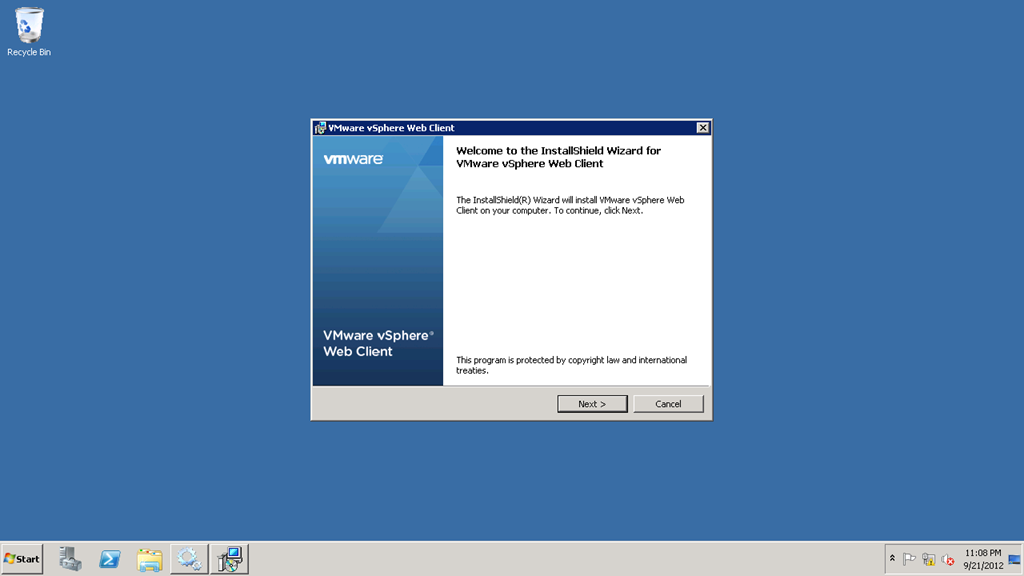
Select vSphere web client from menu and begin the installation.
image
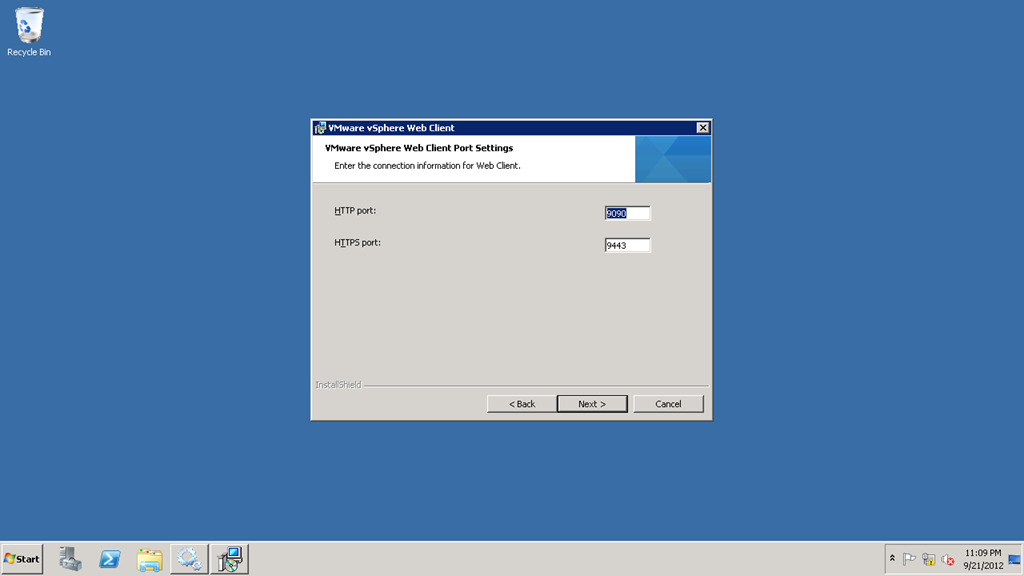
image
image
image
image
image
Check the vSphere Web Client service has been started.
image

That’s all for installation of web client Smile

Lets login to web client, point the browser to https://192.168.1.205:9443/vsphere-client
image
image

My next article will be on Installing the second node of Single Sign On service.

VMWare Single SignOn Service, Inventory Service, vCenter 5.1 Installation

Today, I am going to attempt installation of vCenter 5.1.

vCenter 5.1 requires vmware Single Sign On and vmware Inventory service, so we will start with Single Sign On service.
The order is SSO (Single Sign On), Inventory, and last vCenter. All 3 services can be installed on a single server but, I will attempt to install SSO on a separate server whereas Inventory and vCenter on another server.
I will be installing Inventory and vCenter on same server.

For SSO and vCenter there is a requirement of a SQL server, in this test lab I will be using a separate SQL 2008 R2 server.

So lets begin with installation of SQL 2008 R2 server.

(I will try to post every step screenshot and where ever possible will explain the step also, explanation will be in top of screenshot)

SQL Server 2008 R2 Installation

Domain Name: homelab.com – 192.168.1.151
SQL server : SQL2K8R2.homelab.com – 192.168.1.200

Image-0106

Start the setup of SQL server.
Image-0100

Image-0102

Image-0105

Image-0107

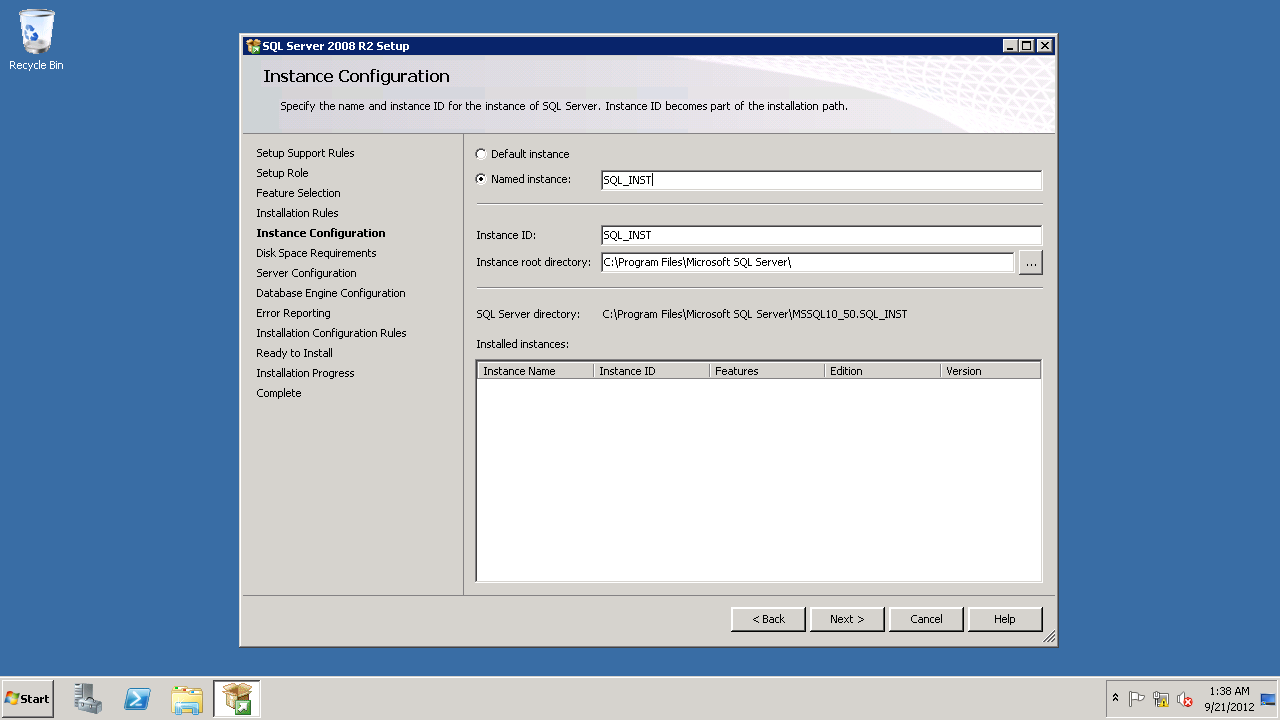
Changed the SQL Instance name from default to custom “SQL_INST”
image

I have set the Account for Agent and Database Engine as “System” may be this is not the best practice, but for sake of ease and lab.
Also, the Server Agent service startup type is set to “Automatic”, later at time of installing Inventory service it has to be set to Auto, so I did it before hand.
Image-0109

Make sure to select “Mixed Mode” for Authentication type.
I have also added local system “administrator” and “Domain Admin” group of AD as SQL administrators.
Image-0110
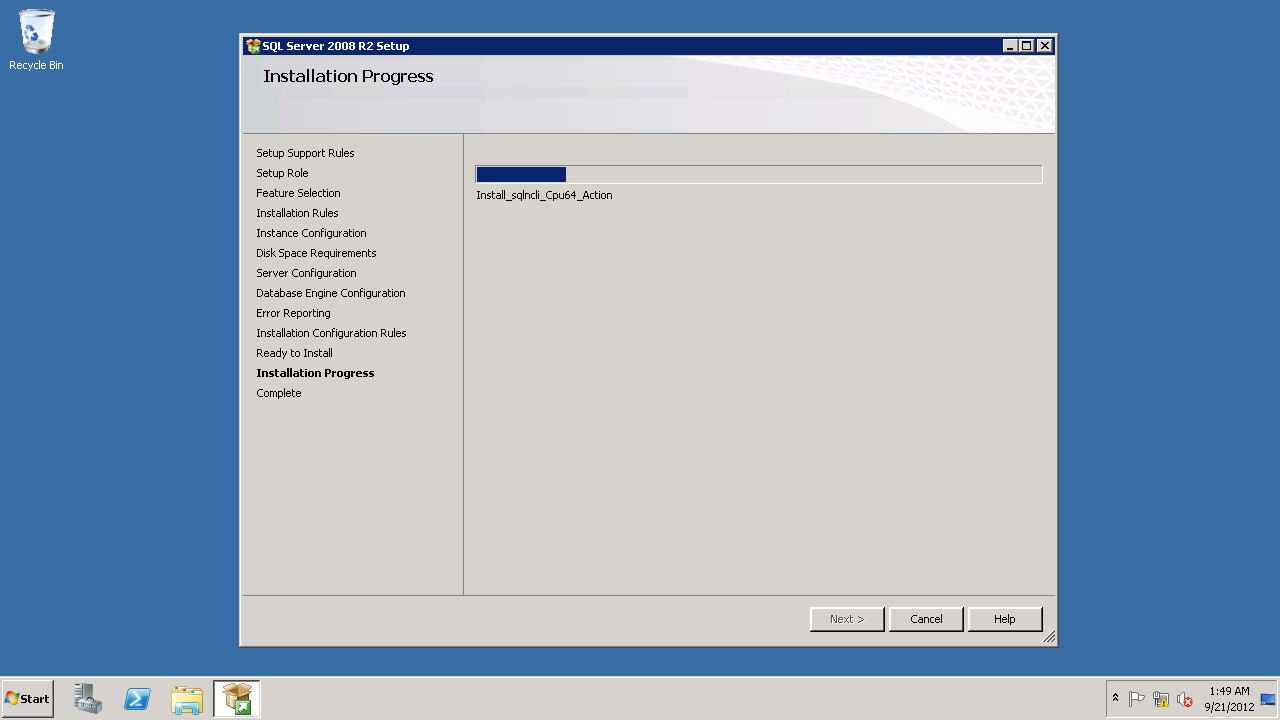
Installation of SQL has started.
Image-0111

Once the installation of SQL server is complete we will go ahead for installation of SSO on a dedicated server.
Image-0113

vCenter Single Sign On Installation
Server Name: SSO-A .homelab.com– 192.168.1.201

Image-0115
Note: If the Single Sign On server or the VM hosting the server fails, administrators cannot access vCenter, but ESXi hosts continue to function normally. That’s the reason I have planned to test SSO in a cluster.

very 1st we will start by enabling the .Net framework feature through server manager MMC.
Image-0114

Image-0116

image
The 1st option will suit our needs for High Availability.
image

image
Installation wizard create a default SSO administrator user account i.e., admin@System-Admin. This username and password (you specify here) will be used for administration of SSO via vSphere web client.
You can create users as required later using this account.
So make sure you remember the password.
The requirement of password is at least 1 uppercase letter, 1 lowercase letter, 1 special character, and total length should be > 8
This requirement can be changed through SSO control panel (vSphere web client).
image
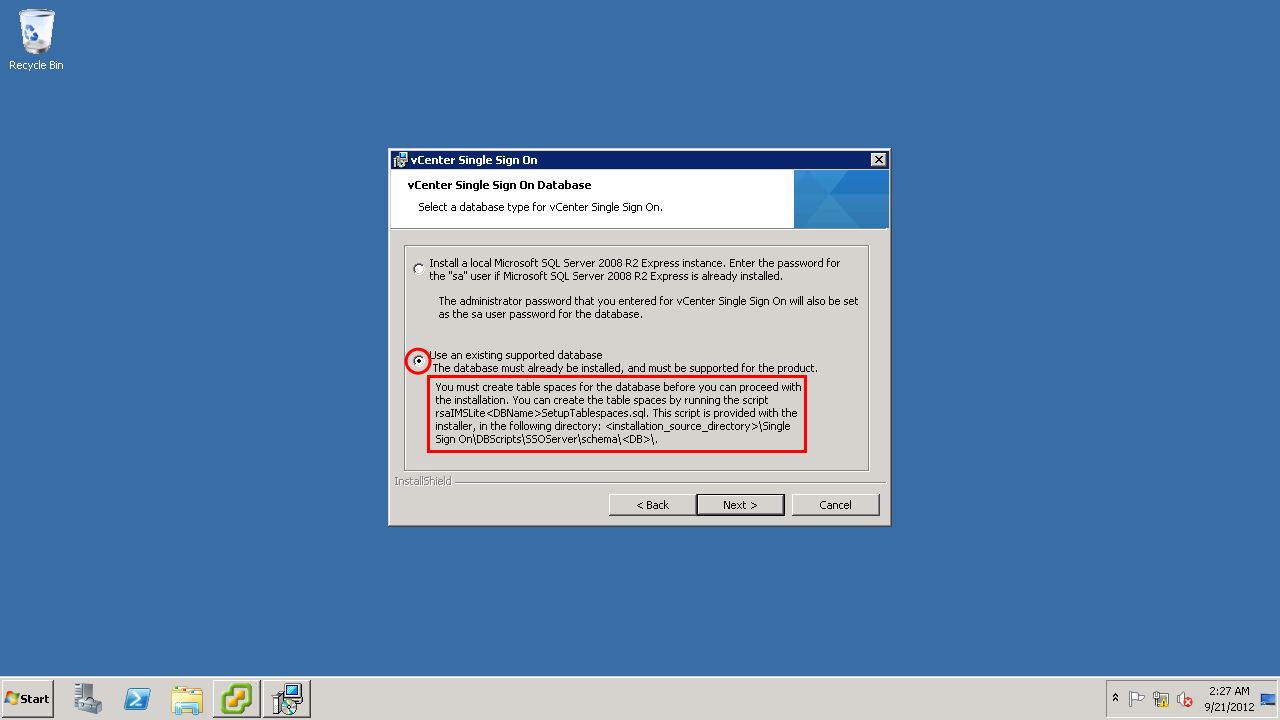
Read this carefully, before we go ahead we need to run a script located in the installation media at \Single Sign On\DBScripts\SSOServer\schema\mssql.
This script has to be executed on SQL server.
Image-0122

We are on SQL Server,. Selected is the script that we need. double click on it, which will launch the management studio.

image
image
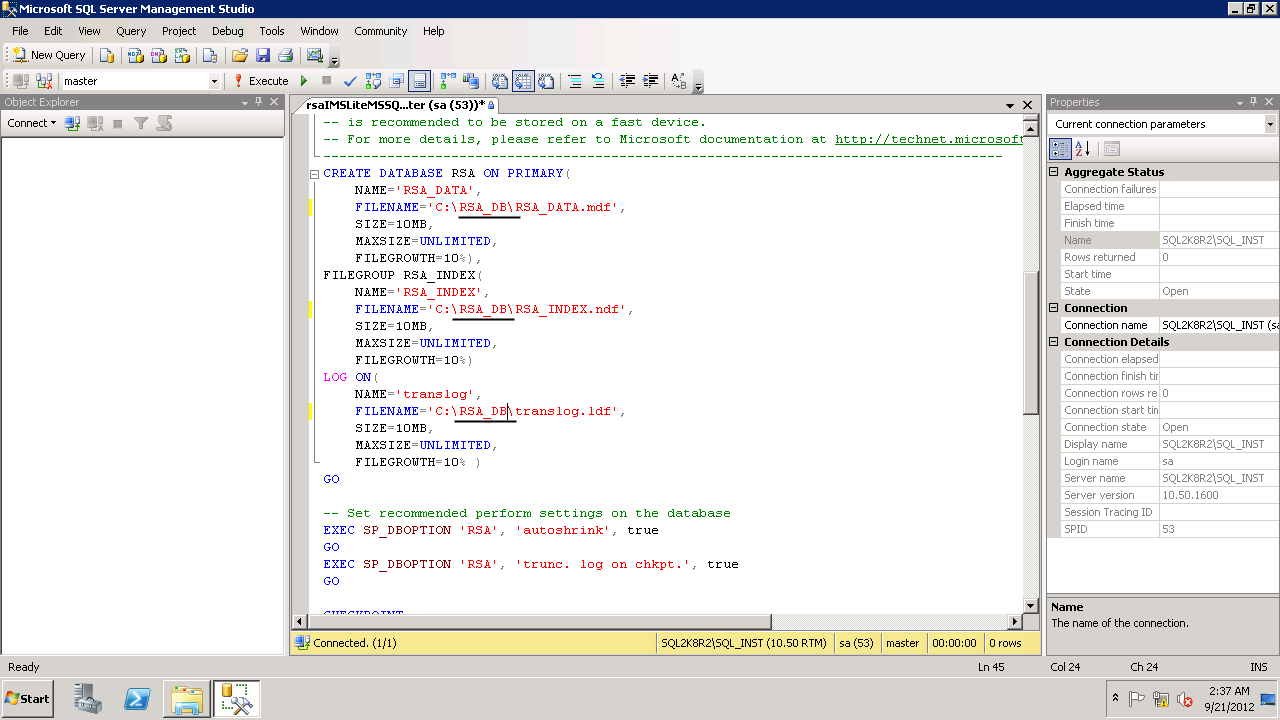
Before we execute the script, we need to make some modifiaction.
1. create folder for database file. I am using folder name as “RSA_DB” on C-Drive (for lab test purpose)
2. modify the path at 3 location, see the screenshot below, marked with black line.

image
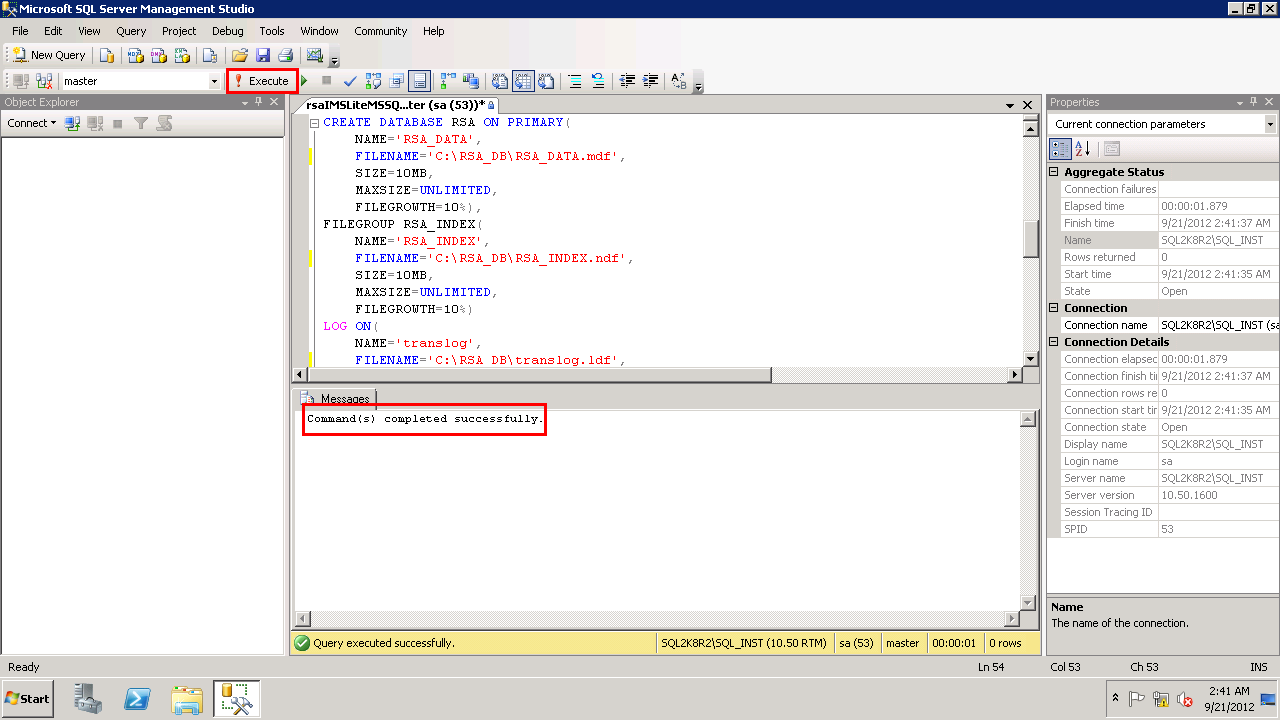
Select “Execute” option from toolbar and you should get a success message.
image
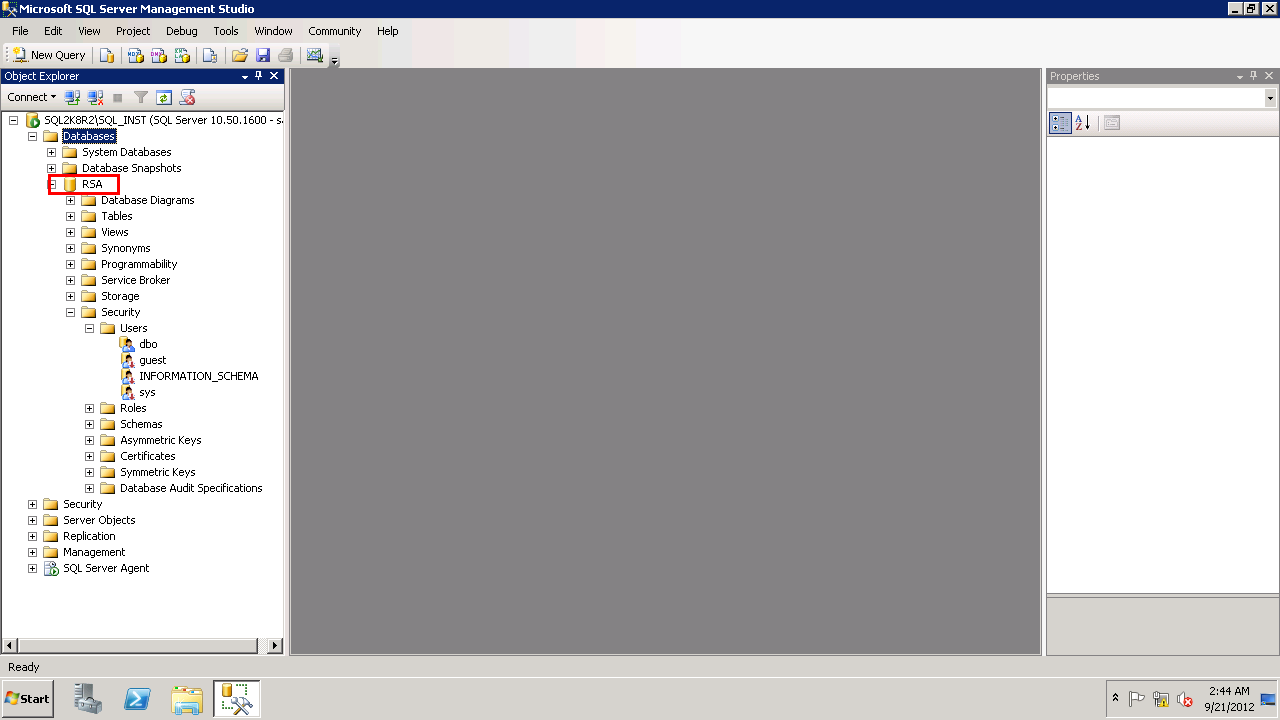
You can see the database “RSA” is created.
image
Lets go back to SSO server and move ahead with installation.

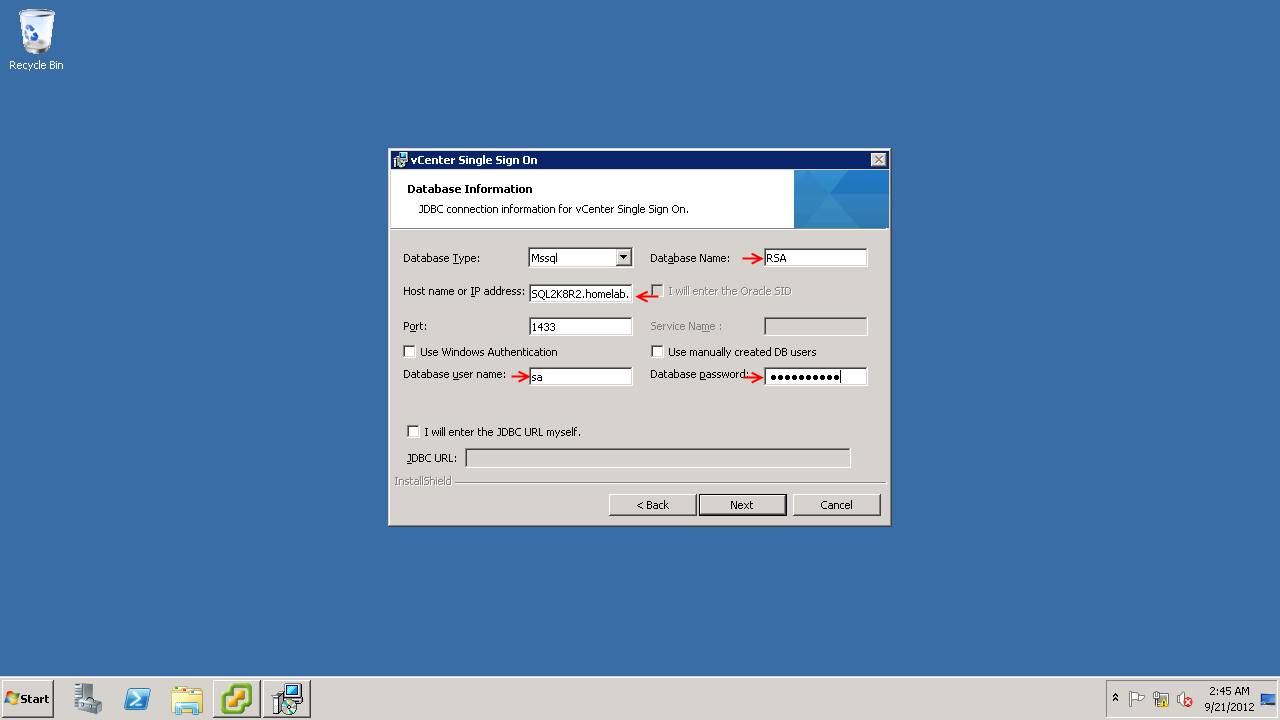
Now, we need to fill in the appropriate details so that the installer can communicate with SQL server.
Database Name: RSA
Host Name: SQL2K8R2.homelab.com
Username: sa
Password : your password
I am using the sa account here.

JDBC URL will be populated automatically once the connection is successful.
image
Might be possible you will get error Database Connection has failed, and if you check the log file vm-sso-javaLib.log mentioned in the error with is located at %temp% dir. it says
“The TCP/IP connection to the host SQL2K8R2.homelab.com, port 1433 has failed. Error: “connect timed out. Verify the connection properties, check that an instance of SQL Server is running on the host and accepting TCP/IP connections at the port, and that no firewall is blocking TCP connections to the port.”.
image

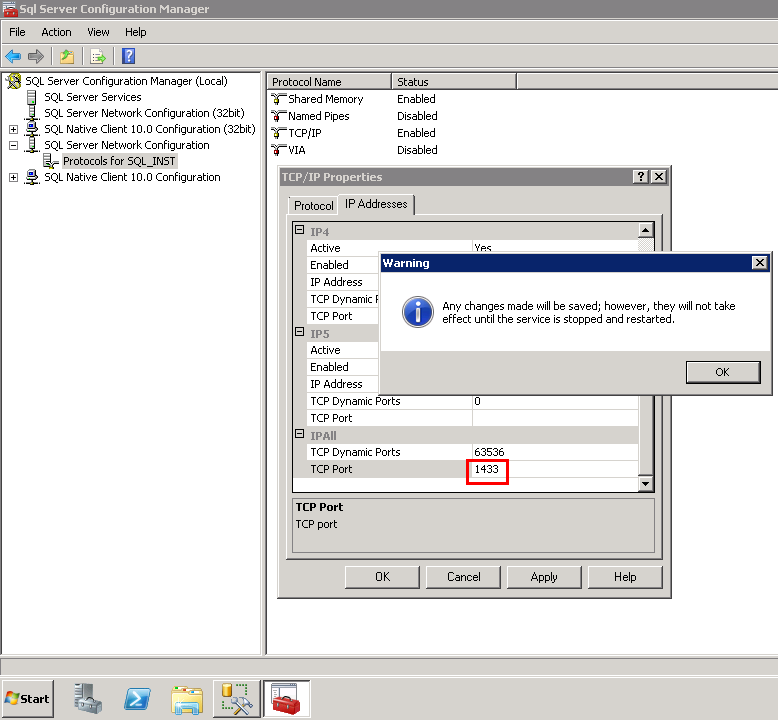
To resolve this, I made changes in SQL server configuration manager, under the properties of TCP/IP, IP Address tab, TCP Port is blank, set it to “1433”
imageimage
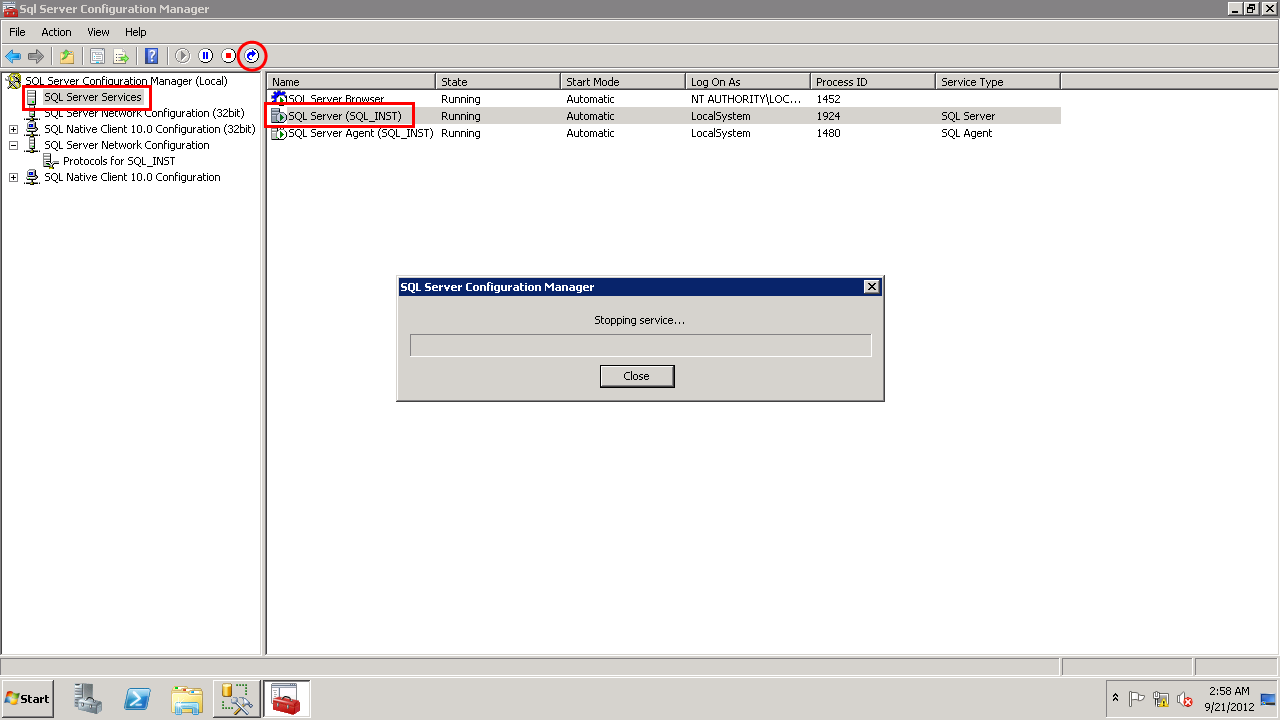
Restart the SQL server service and back to SSO installation, try moving ahead.
image
the connection will be successful, if you click back you will see JDBC URL is populated.
image
image
image
Leave the port number to default.
image
image
This completes the installation of SSO on a dedicated server.
Image-0138
Check the service from services MMC.
image

vCenter Inventory Service Installation

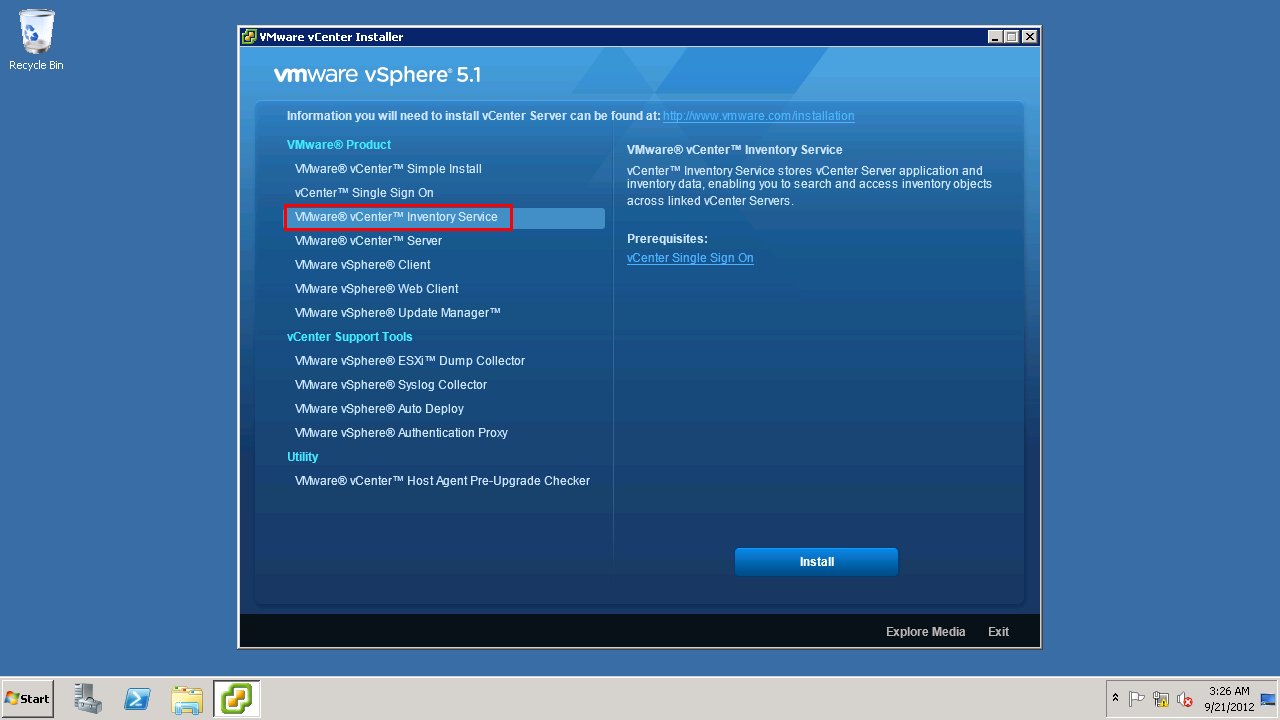
Lets begin installation of Inventory service on a new server, this server will also host the vCenter server.

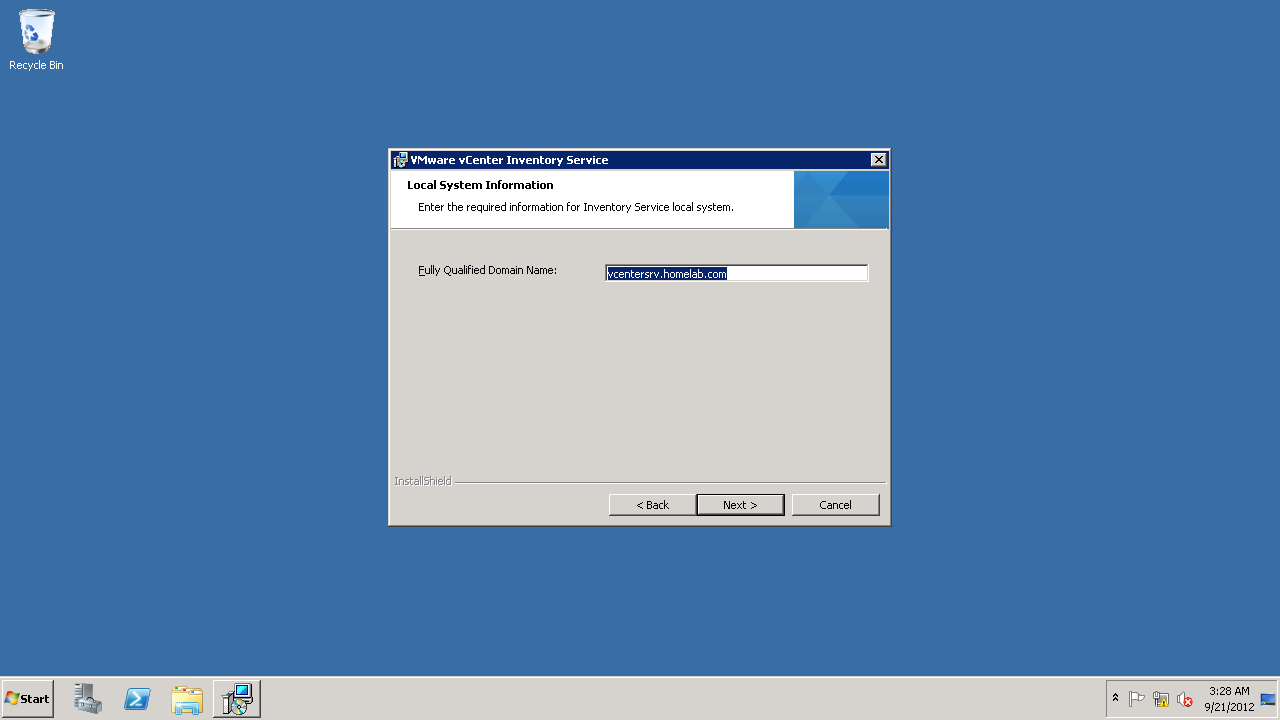
Server Name: vcentersrv.homelab.com – 192.168.1.205
image

Inventory and vCenter requires .Net framework, and we will start by enabling the feature from “Server Manager”

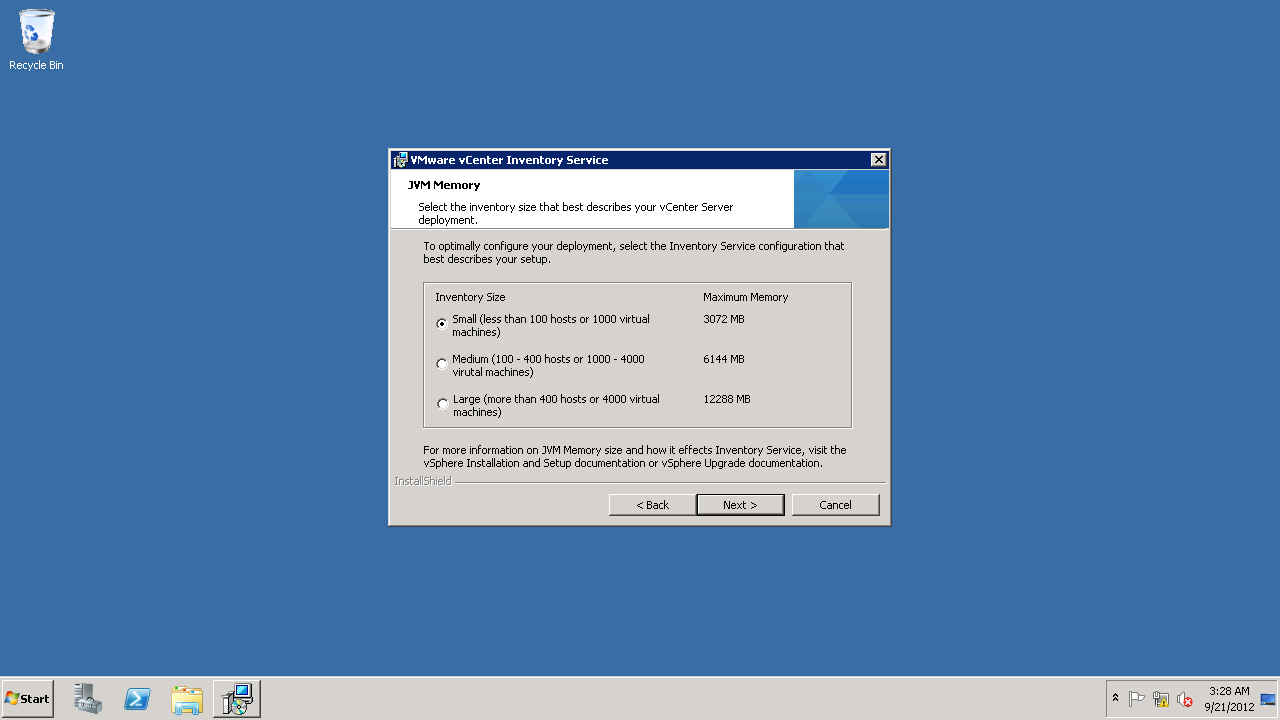
Start the Setup for Inventory Service.

Image-0141

Image-0142

Image-0143

Image-0144

Image-0145

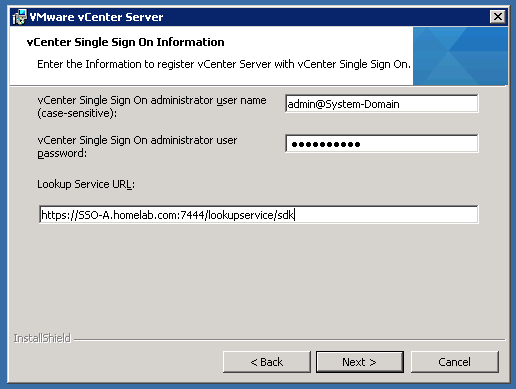
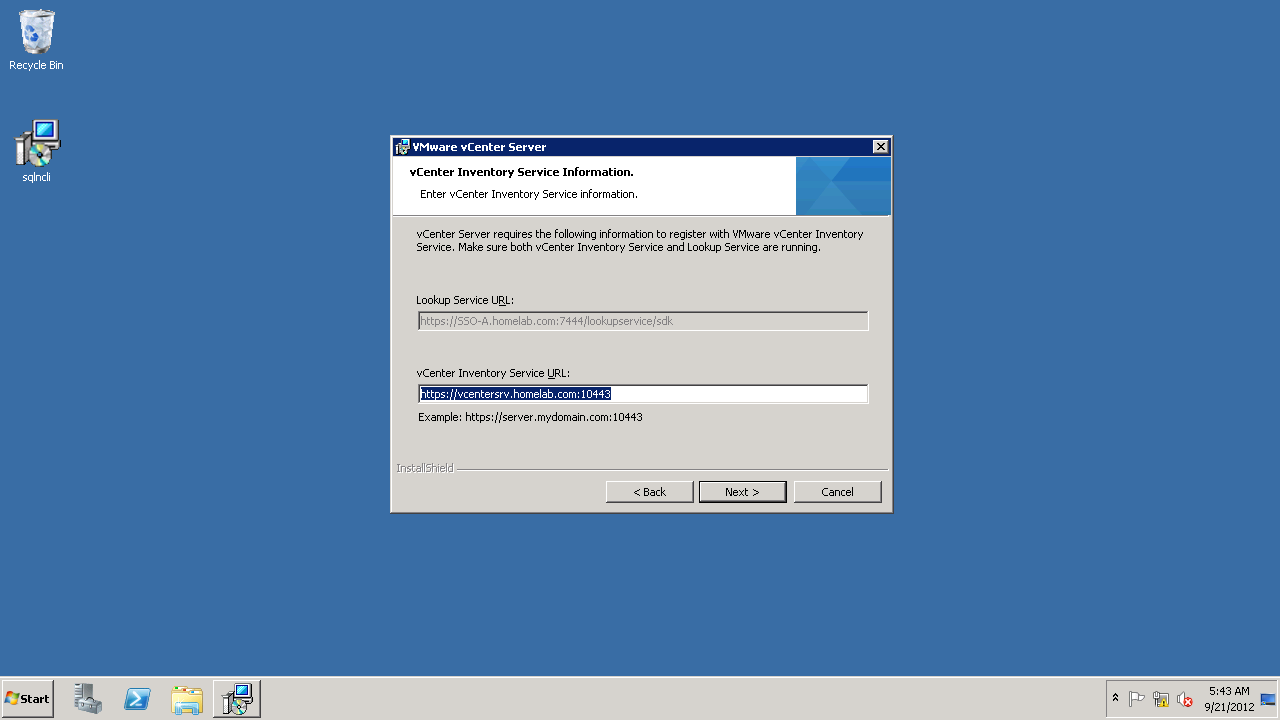
Here, enter the URL for Lookup service, which is part of SSO.
I hope you remember the password for SSO admin account. Smile
Image-0146

Image-0147

Image-0148

Image-0149

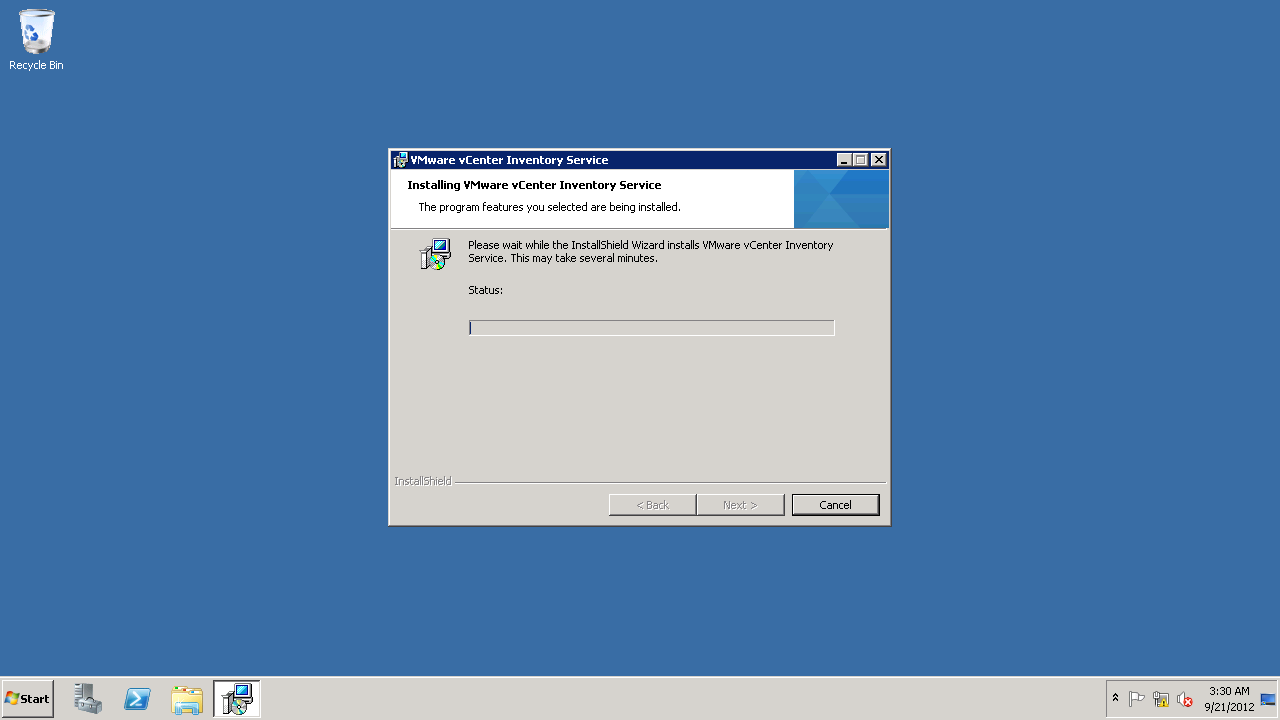
This was a very straight forward Installation.

vCenter Server Installation

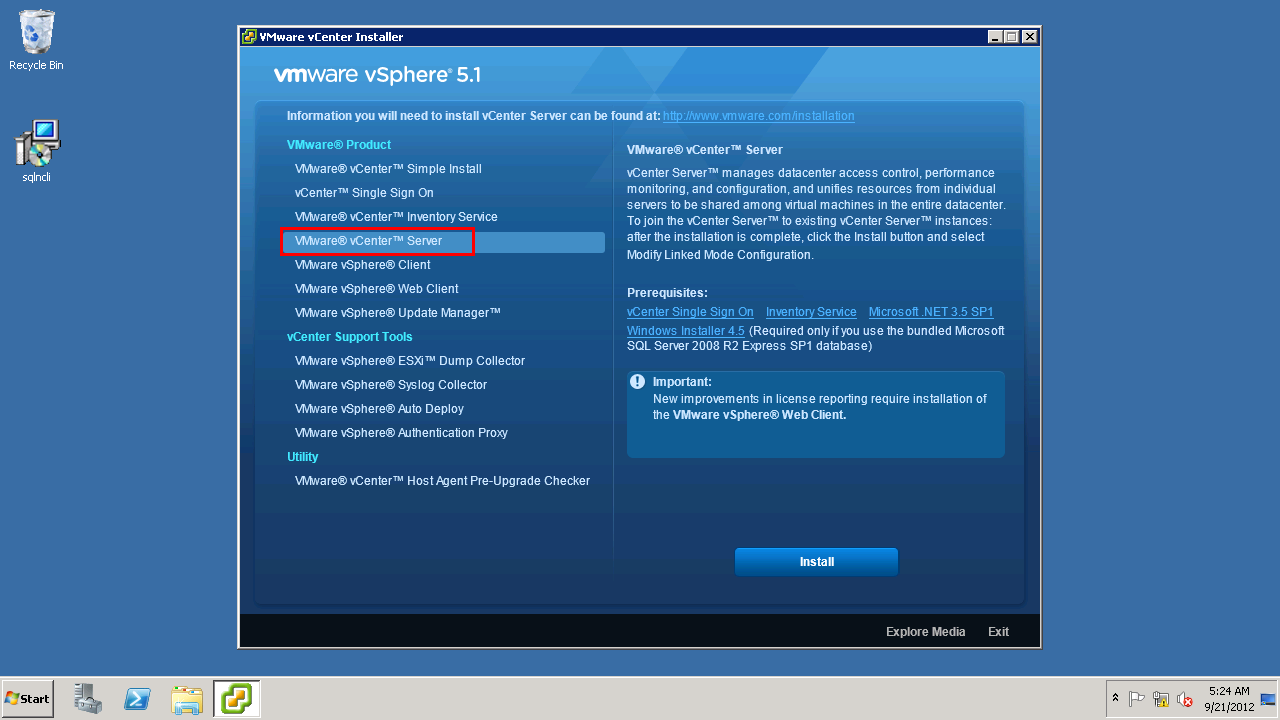
For vCenter, we will start by preparing the database. we will be using the same SQL server for vCenter database.

Use the script below to create the database for vCenter Server.
On the SQL Server, open Management studio, create a new Query and paste the script.

Copy Script starting after the line

—————————————-

use [master]
go
CREATE DATABASE [VCDB] ON PRIMARY
(NAME = N’vcdb’, FILENAME = N’C:\VC_DB\VCDB.mdf’ , SIZE = 2000KB , FILEGROWTH = 10% )
LOG ON
(NAME = N’vcdb_log’, FILENAME = N’C:\VC_DB\VCDB.ldf’ , SIZE = 1000KB , FILEGROWTH = 10%)
COLLATE SQL_Latin1_General_CP1_CI_AS
go

use VCDB
go
sp_addlogin @loginame=[vpxuser], @passwd=N’vpxuser’, @defdb=’VCDB’, @deflanguage=’us_english’
go
ALTER LOGIN [vpxuser] WITH CHECK_POLICY = OFF
go
CREATE USER [vpxuser] for LOGIN [vpxuser]
go

CREATE SCHEMA [VMW]
go
ALTER USER [vpxuser] WITH DEFAULT_SCHEMA =[VMW]
go

/*User should have DBO Privileges or VC_ADMIN_ROLE and VC_USER_ROLE database roles*/

sp_addrolemember @rolename = ‘db_owner’, @membername = ‘vpxuser’
go

/*or*/

if not exists (SELECT name FROM sysusers WHERE issqlrole=1 AND name = ‘VC_ADMIN_ROLE’)
CREATE ROLE VC_ADMIN_ROLE;
GRANT ALTER ON SCHEMA :: [VMW] to VC_ADMIN_ROLE;
GRANT REFERENCES ON SCHEMA :: [VMW] to VC_ADMIN_ROLE;
GRANT INSERT ON SCHEMA ::  [VMW] to VC_ADMIN_ROLE;

GRANT CREATE TABLE to VC_ADMIN_ROLE;
GRANT CREATE VIEW to VC_ADMIN_ROLE;
GRANT CREATE Procedure to VC_ADMIN_ROLE;

if not exists (SELECT name FROM sysusers WHERE issqlrole=1 AND name = ‘VC_USER_ROLE’)
CREATE ROLE VC_USER_ROLE
go
GRANT SELECT ON SCHEMA ::  [VMW] to VC_USER_ROLE
go
GRANT INSERT ON SCHEMA ::  [VMW] to VC_USER_ROLE
go
GRANT DELETE ON SCHEMA ::  [VMW] to VC_USER_ROLE
go
GRANT UPDATE ON SCHEMA ::  [VMW] to VC_USER_ROLE
go
GRANT EXECUTE ON SCHEMA :: [VMW] to VC_USER_ROLE
go

sp_addrolemember VC_ADMIN_ROLE , [vpxuser]

go

sp_addrolemember VC_USER_ROLE , [vpxuser]

go

use MSDB
go

CREATE USER [vpxuser] for LOGIN [vpxuser]
go

/*User should have DBO Privileges or VC_ADMIN_ROLE */

sp_addrolemember @rolename = ‘db_owner’, @membername = ‘vpxuser’
go

/*or*/

if not exists (SELECT name FROM sysusers WHERE issqlrole=1 AND name = ‘VC_ADMIN_ROLE’)
CREATE ROLE VC_ADMIN_ROLE;

go
grant select on msdb.dbo.syscategories to VC_ADMIN_ROLE
go
grant select on msdb.dbo.sysjobsteps to VC_ADMIN_ROLE
go
GRANT SELECT ON msdb.dbo.sysjobs to VC_ADMIN_ROLE
GO
GRANT EXECUTE ON msdb.dbo.sp_add_job TO VC_ADMIN_ROLE
go
GRANT EXECUTE ON msdb.dbo.sp_delete_job TO VC_ADMIN_ROLE
go
GRANT EXECUTE ON msdb.dbo.sp_add_jobstep TO VC_ADMIN_ROLE
go
GRANT EXECUTE ON msdb.dbo.sp_update_job TO VC_ADMIN_ROLE
go
GRANT EXECUTE ON msdb.dbo.sp_add_jobserver TO VC_ADMIN_ROLE
go
GRANT EXECUTE ON msdb.dbo.sp_add_jobschedule TO VC_ADMIN_ROLE
go
GRANT EXECUTE ON msdb.dbo.sp_add_category TO VC_ADMIN_ROLE
go

sp_addrolemember VC_ADMIN_ROLE , [vpxuser]

go

—————————————-

You will see the database is create and appropriate users are given permissions on database.
image
image

image

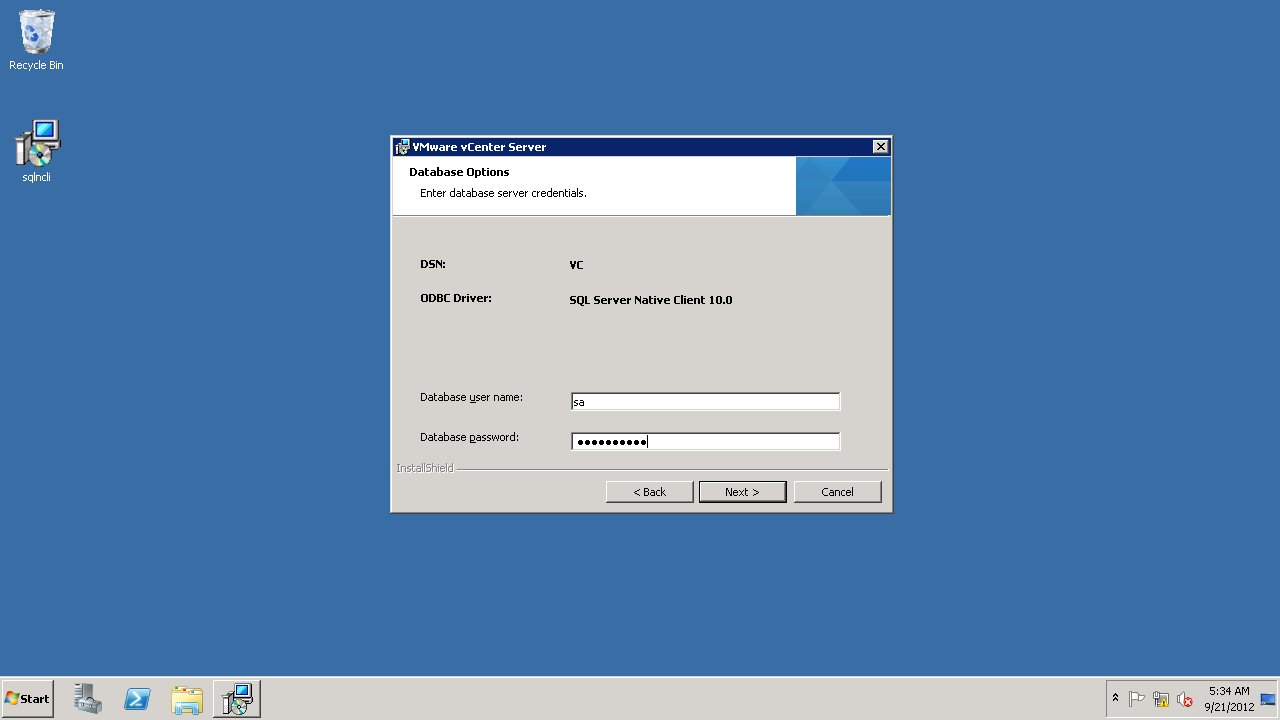
Lets create the x64 SYSTEM DSN ODBC connection for database.
This has to be done on vCenter Server i.e., in my lab it is vcentersrv.homelab.com

We need to create a “SQL Server Native Client” type of data source, You will find that there is no entry for it.
Download and install Native Client on vCenter Server from http://go.microsoft.com/fwlink/?LinkId=123718&clcid=0x409

image
image
image
image
image
image
image
image
image
image
Image-0195
Image-0198
Image-0199

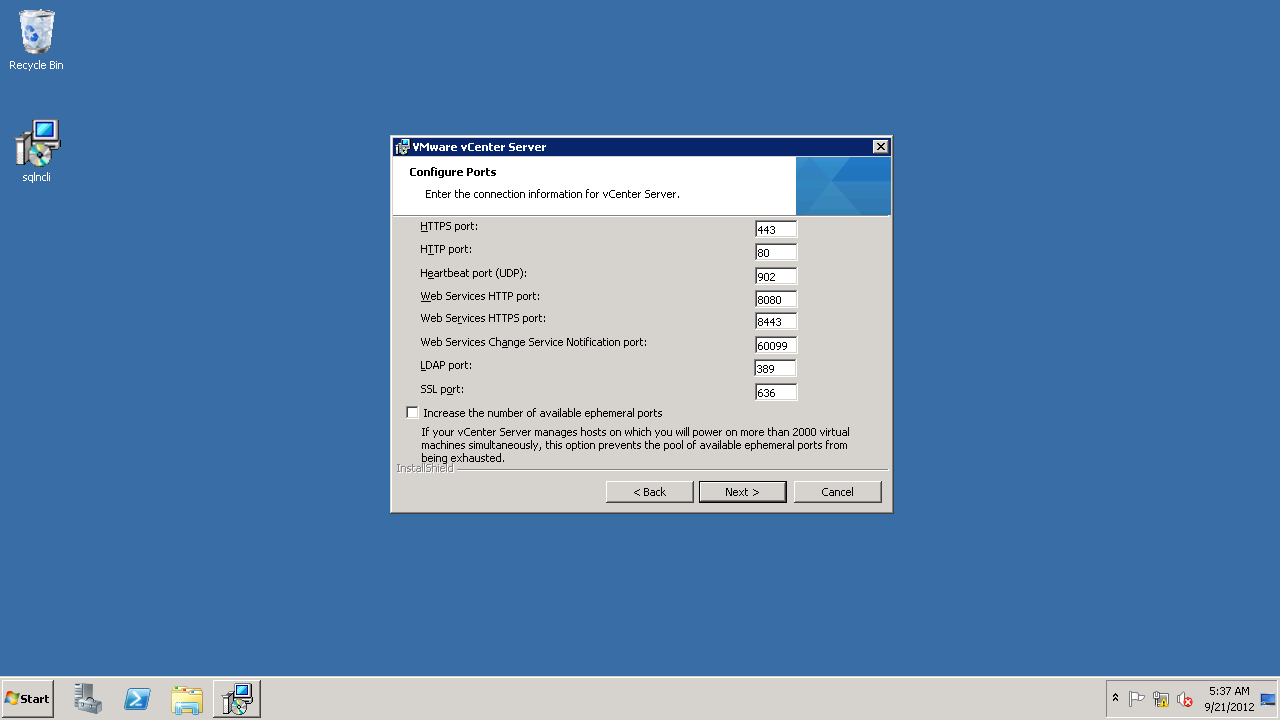
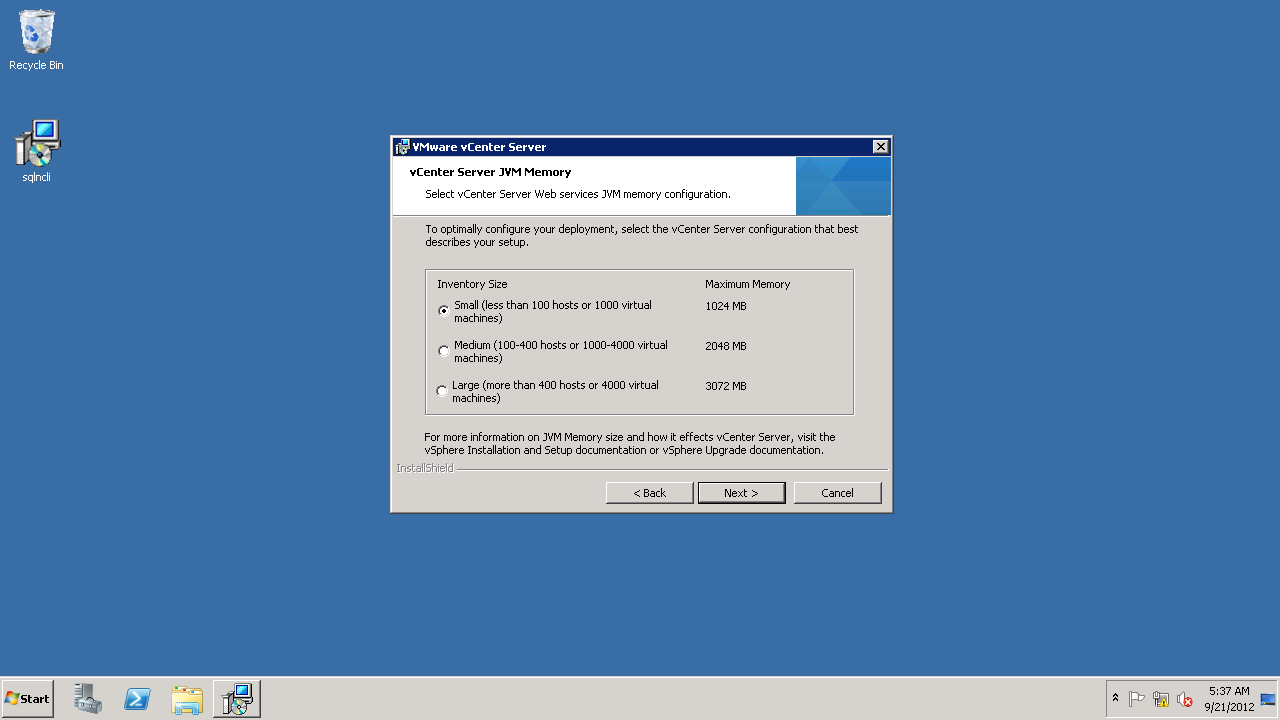
Installation of vCenter Server is complete.
I will continue the post in next part, where we will cover installation of vSphere Web Client.