Upgrade ESXi 4.0.0 U1(208167) to ESXi 4.1.0 (260247) using ESXi Console “Tech Support Mode” (without vsphere host update utility)

Here we will see how to upgrade ESXi host from 4.0.0 U1 to 4.1.0 using ESXi tech support mode.

we will need the update bundle which is a zip file.
Also you will have to enable SSH so that you can upload the .zip bundle to ESXi host.
We will use WinSCP and Putty as our tools to connect to ESXi host.

As you can see below I have the bundle zip file.
image

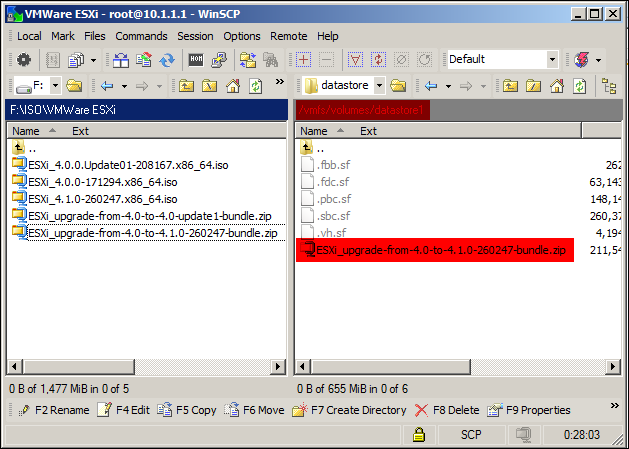
Lets upload the file to ESXi using winSCP utility.
image
You can see I have uploaded the file in “datastore1”, now lets rename it to 40-41.zip so that it will be easy when we refer to this file in SSH CLI

Open Putty, connect to ESXi host.
Login using root username and password
We will use “esxupdate” cmd
esxupdate is found in /sbin directory.
image

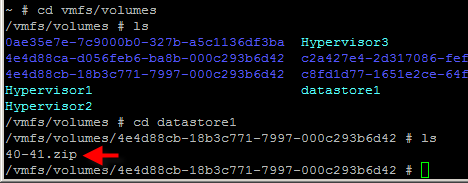
Let us check the bundle file which we uploaded in datastore1
image

We will need the location of file, so we will highlight the location i.e., /vmfs/volumes/4e4….d42 and right click, which will copy the location to clipboard.

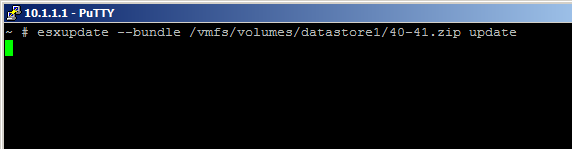
Lets run the esxupdate cmd
image

The ESXi host should be in maintenance mode for update to run successfully, and I forgot to put it which gave me the error as shown below.
You will also notice that I have used the “datastore1” in the URL, which also works as it’s the shortcut to the numerical folder that we saw before.

image

Lets put the host in maintenance mode using vim-cmd hostsvc/maintenance_mode_enter
image

Let us run the esxupdate cmd again. and you can see the update has started.
image

The update is completed, as the message says we will reboot the host using “reboot” cmd.
image

Updated to 4.1.0.
image

Exchange 2010 SP1–Database status (mounted or dismounted)

If we run cmd-let Get-MailboxDatabase we cannot find the Mount status of database.

Get-MailboxDatabase –identity MBX2DB1 | FL Name, Mounted

image

Use –Status Parameter.

Get-MailboxDatabase –identity MBX2DB1 –Status | FL Name, Mounted

image

Using FT along with –AutoSize –Wrap will give a better view if we have multiple database.

image

Exchange 2010 SP1–Database status (mounted or dismounted)

If we run cmd-let Get-MailboxDatabase we cannot find the Mount status of database.

Get-MailboxDatabase –identity MBX2DB1 | FL Name, Mounted

image

Use –Status Parameter.

Get-MailboxDatabase –identity MBX2DB1 –Status | FL Name, Mounted

image

Using FT along with –AutoSize –Wrap will give a better view if we have multiple database.

image

Power CLI – Find CD-ROM with ISO attached

I wanted to find out which of my VMs in VMWare is having ISO attached to its CD-Rom. Its quite annoying to go to each VM property and check for CD-Rom.

This Power CLI liner will help us a lot.

Get-VM | Where-Object {$_.PowerState –eq “PoweredOn”} | Get-CDDrive | FT Parent, IsoPath

Get-VM – as it says, gives you all the VMs in your virtual infrastructure.
Where-Object{$_.PowerState – eq “PoweredOn”} – this will find only those VMs which are online
Get-CDDrive – All the VMs that we collected using Get-VM and Where-Object will be passed on to Get-CDDrive as value for parameter “–VM” and Next we will search the results that we got in Get-CDDrive by specifying the Objects that we need like “Parent” which is the name of VM and IsoPath which is the path of ISO file that is attached to CD-ROM.

Removing / Dismounting ISO from CD-ROM.

Now are we have list of VMs which has ISO attached to CD- ROM, lets remove them just by a one-liner.

Get-VM | Where-Object {$_.PowerState –eq “PoweredOn”} | Get-CDDrive | Set-CDDrive –NoMedia

Image-0001

Prompt will ask for confirmation, lets give it “A” Yes to All
Image-0002

If you check your vSphere Client, Under recent tasks you can see the VMs being reconfigured.
Image-0004

Now lets check the CD-ROM using our 1st liner.
Image-0005
There is no value displayed under IsoPath, as the ISO has been detached from CD-ROM.

Lets also check the properties of any one VM from GUI.
Image-0006