Changing UserName and SMTP addresses in bulk

Recently I had to perform a task in which there was a need to change UserName, Alias and SMTP addresses associated with the user for approx 150 users. These were recently created users.

If I start doing it using GUI, am sure my whole day will pass in find, click.. click.. click..

I had to do little bit of manual work like generating a csv output for the users in the department OU and add new username and new email address column to it.

The final CSV looked like this.
image

Once ready with the csv file, lets import it in PowerShell and let it do its magic.

$userCol = Import-Csv -Path C:\Update-users.csv
Foreach($user in $userCol){
"Processing : "+$user.UserName
    Set-Mailbox -Identity $user.UserName -EmailAddressPolicyEnabled $false
    Set-Mailbox -Identity $user.UserName -Alias $user.NewUserName
    Set-Mailbox -Identity $user.UserName -EmailAddresses $user.NewEmail
    Set-Mailbox -Identity $user.UserName -EmailAddressPolicyEnabled $true
"Changing UserName from: "+$user.UserName+" TO: "+$user.NewUserName
    Set-Mailbox -Identity $user.UserName -SamAccountName $user.newUserName -UserPrincipalName $user.upn -Alias $user.NewUserName
    }

I did use a seperate set-mailbox for each task for easy to understand.

The script is self explanatory.

Hope it helps.

Exchange 2010 PowerShell Remoting

Many a times we come across situation when we need access to powershell to run some exchange specific cmdlets.
But the workstation is either not having management tools installed or the workstation is running an x86 Operating system.

The easiest way to get the job done is by using PowerShell “Remoting” feature.

Remoting should be enabled in Exchange 2010 server so that workstation Powershell can connect to remote (exchange 2010) server.

On Exchange 2010 Server:
To enabled Remoting
Run,
Enabled-PSRemoting

On workstation:
Run,
$PSExch = New-PSSession –ConfigurationName Microsoft.Exchange –ConnectionUri
http://ExchangeSrv.domain.com/Powershell

Import-PSSession –session $PSExch

Import-PSSession will import all the cmdlets necessary to manage Exchange via powershell.

0009

That’s it. You have access to powershell on Exchange server.

Upgrading and Migrating Virtual Center 4.0 to vCenter 5.0 to a x64Bit platform

I have been planning to put together an article on Upgrading and Moving Virtual Center 4.0 to vCenter 5.0 since a long time and here it goes today.

What we have in Lab?
I have prepared 2 ESX named as ESX4-A and ESX4-B. (we will be upgrading this to ESXi 5 in next article)
Also, I have setup a MS-SQL 2005 Enterprise server on Windows 2003 R2 Enterprise SP2 x86 which  is serving as a separate database server for Virtual Center server. This server is named as SQL2005
A Virtual Center 4.0 server on Windows 2003 R2 Enterprise SP2 x86, named as vcenter4
XP Pro workstation from where virtual center will be managed using vSphere Client.

A SQL2008R2 x64 server on Windows 2008 R2 x64 OS, which will serve as Database server for vCenter 5
A Windows 2008 R2 x64 Server which will host our new vCenter Server 5.0

From XP Client I have connected to Virtual Center server via vSphere Client.
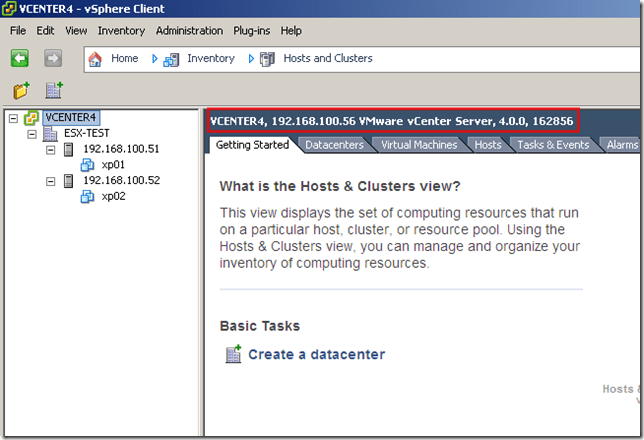
image

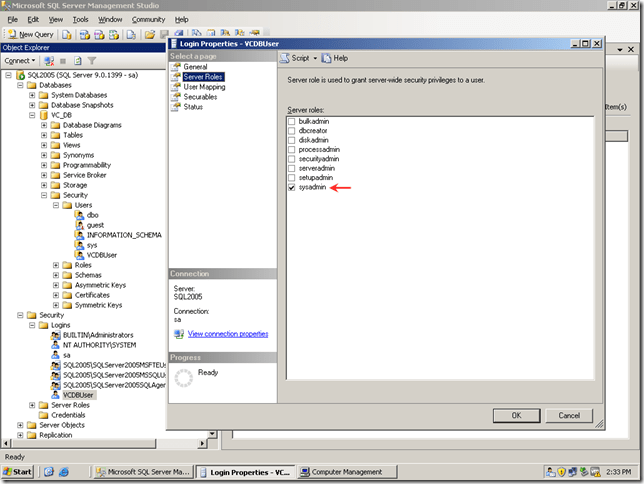
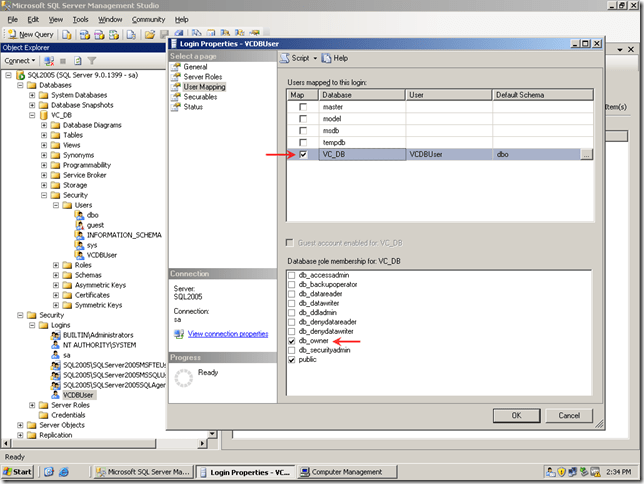
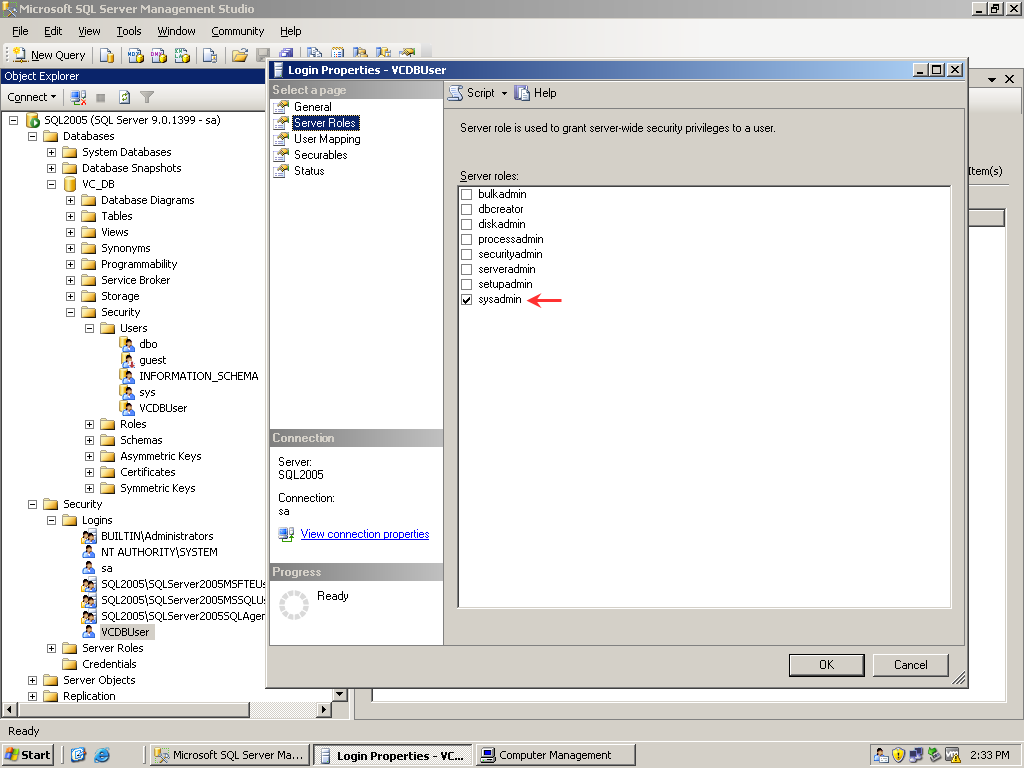
On SQL2005 Server, The database is using a SQL User account “VCDBUser” (it is not a local user account)
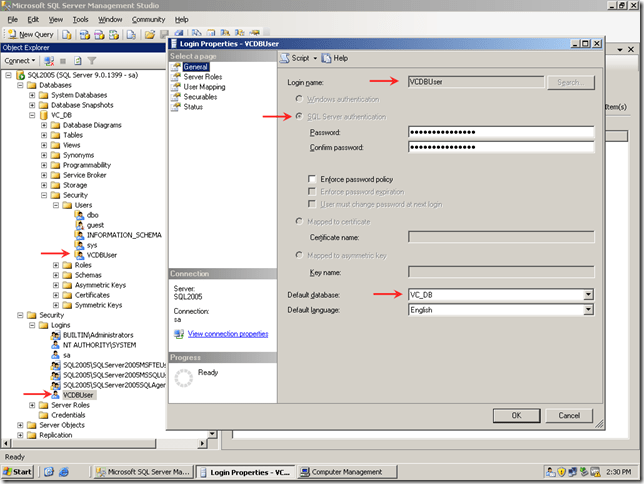
image
SCRN-CAP-0011
image

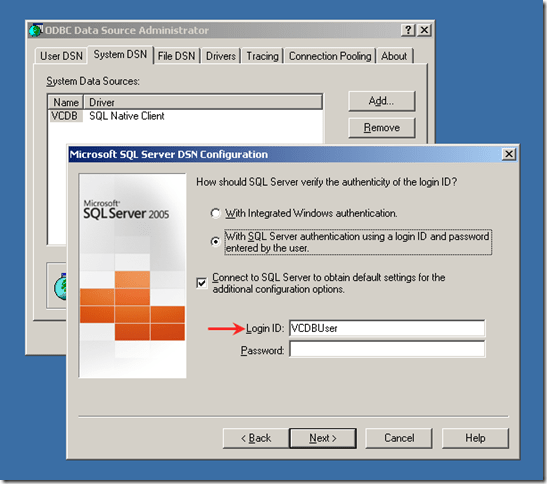
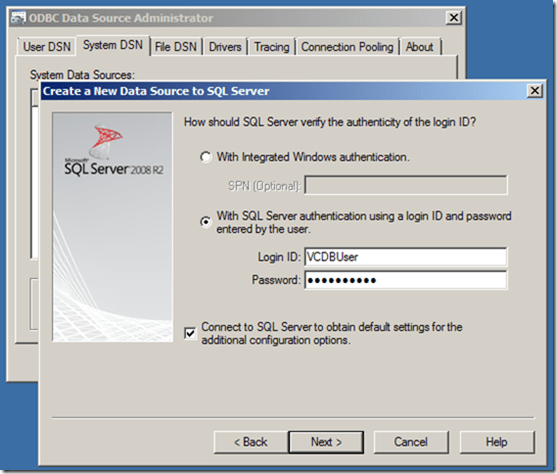
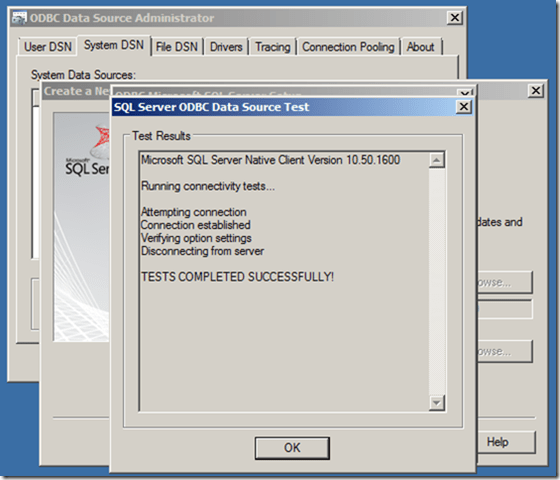
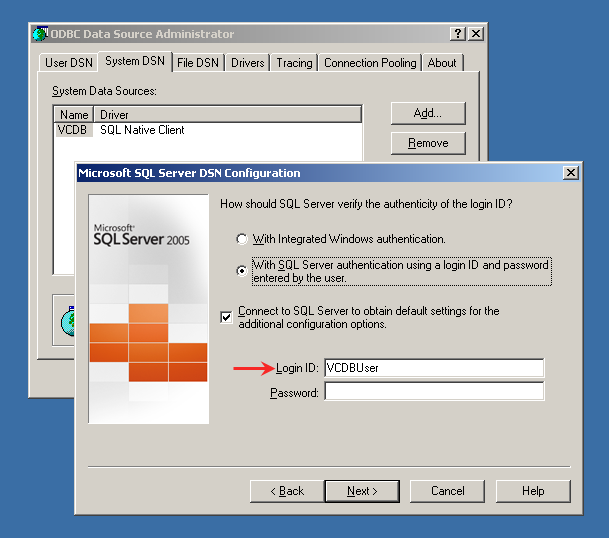
On Virtual Center server a 32-Bit ODBC DSN is created to connect to database VC_DB on SQL2005, using VCDBUser account that is created on SQL Server.
image
image
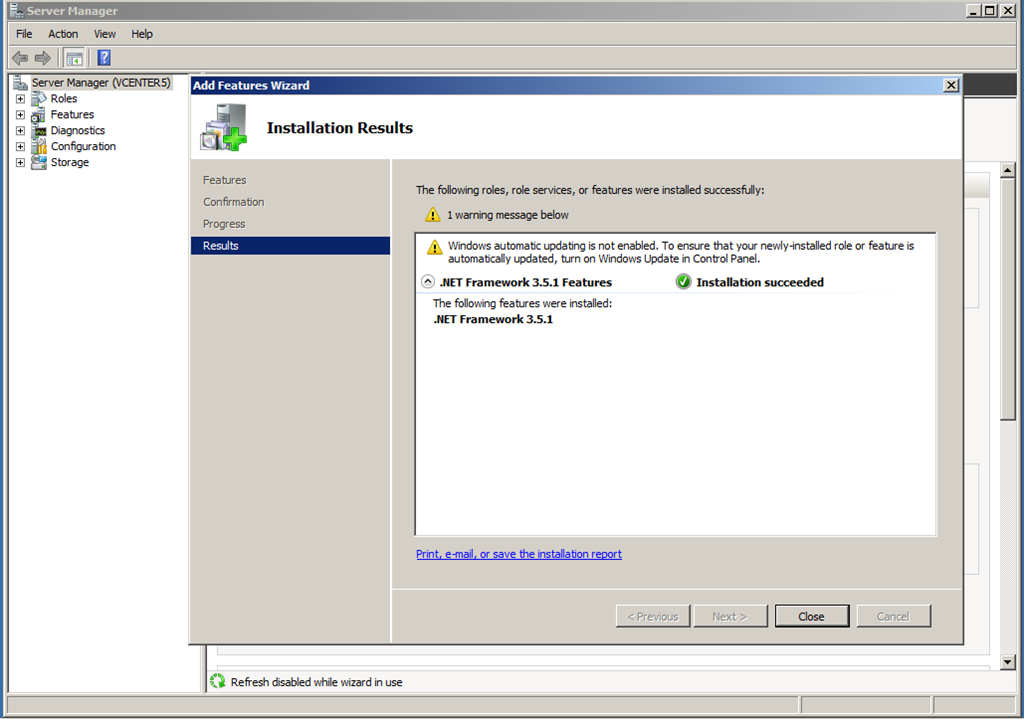
Now, Lets prepare the SQL2008R2 server and install SQL2008 R2 database server. I have also enabled .Net 3.5 feature of windows 2008 R2.
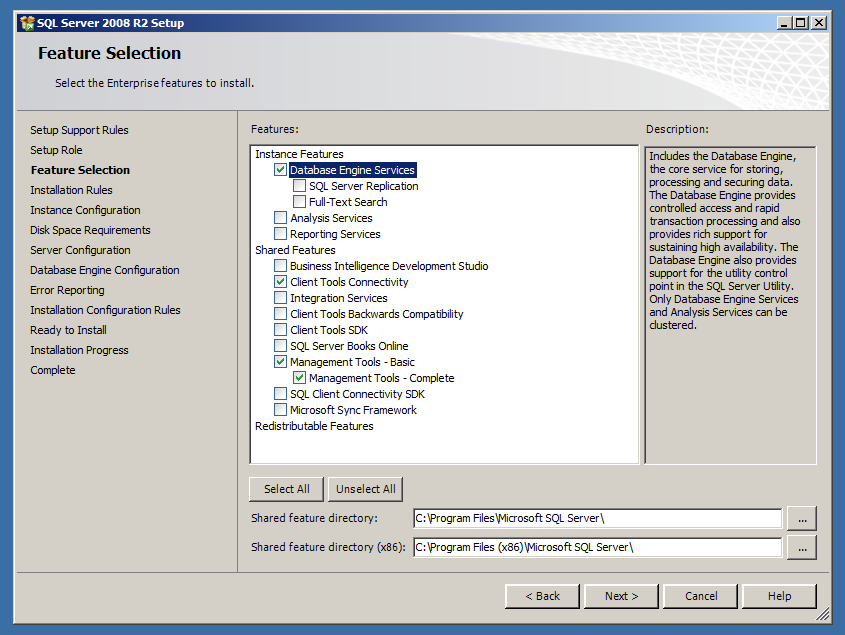
Here is the feature selection page for SQL2008 R2.
SCRN-CAP-0015
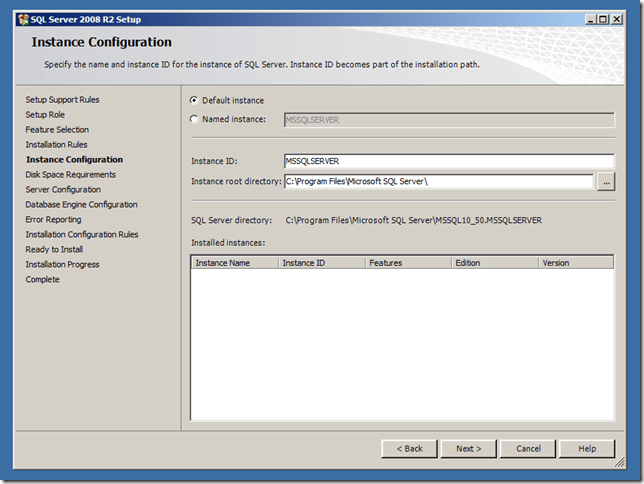
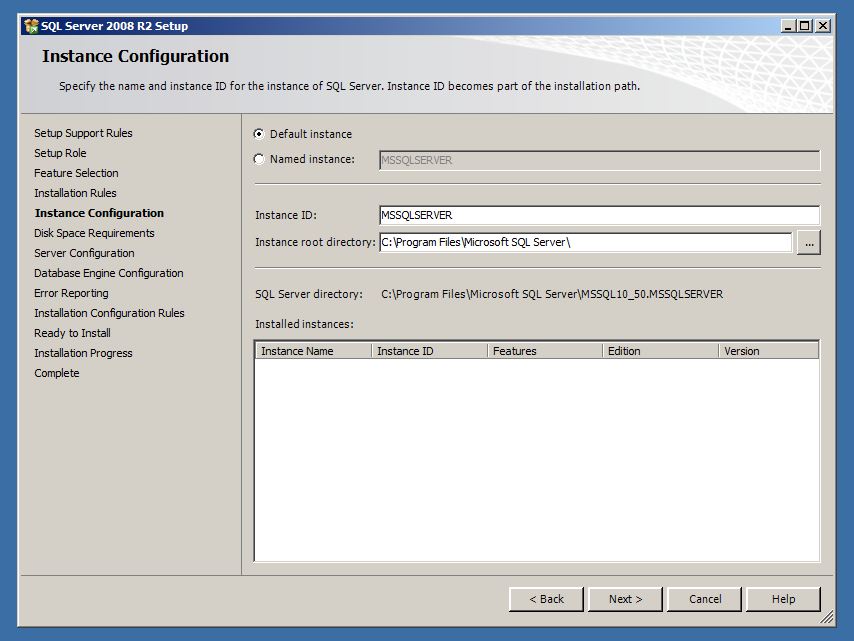
Using default instance name.
image
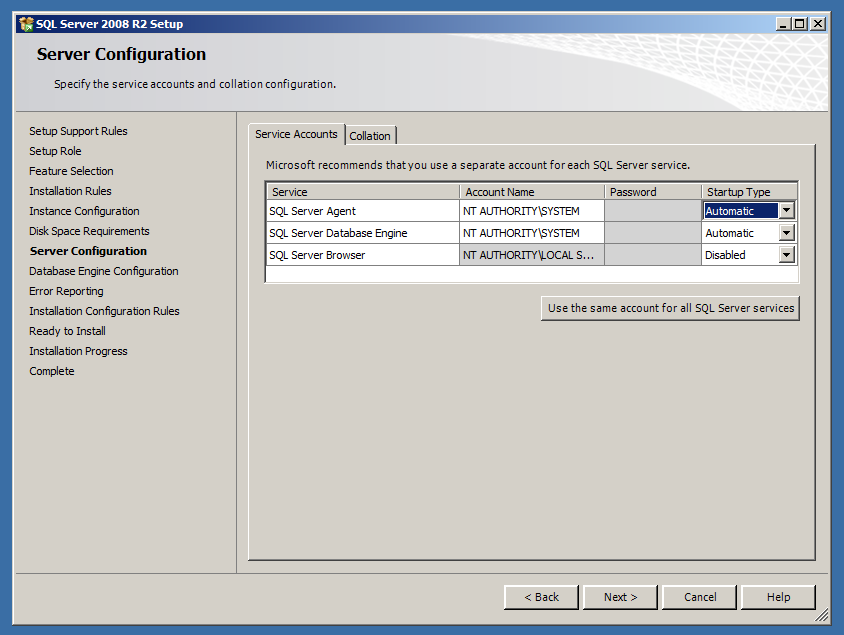
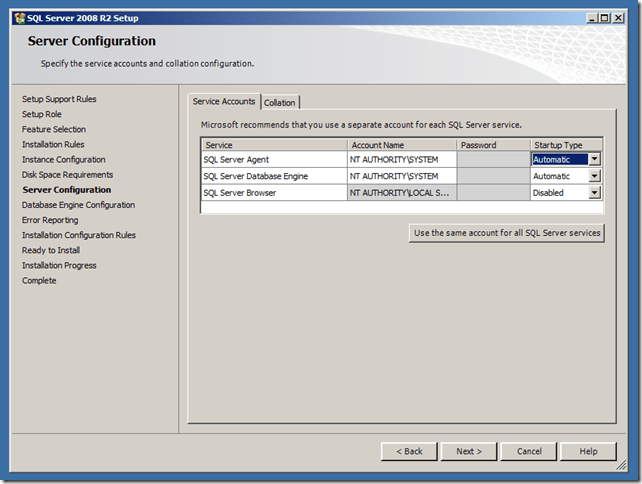
Using system account for all the services that will be installed. (not as per the best practice)
image
Default Collation settings Latin1_General.
image
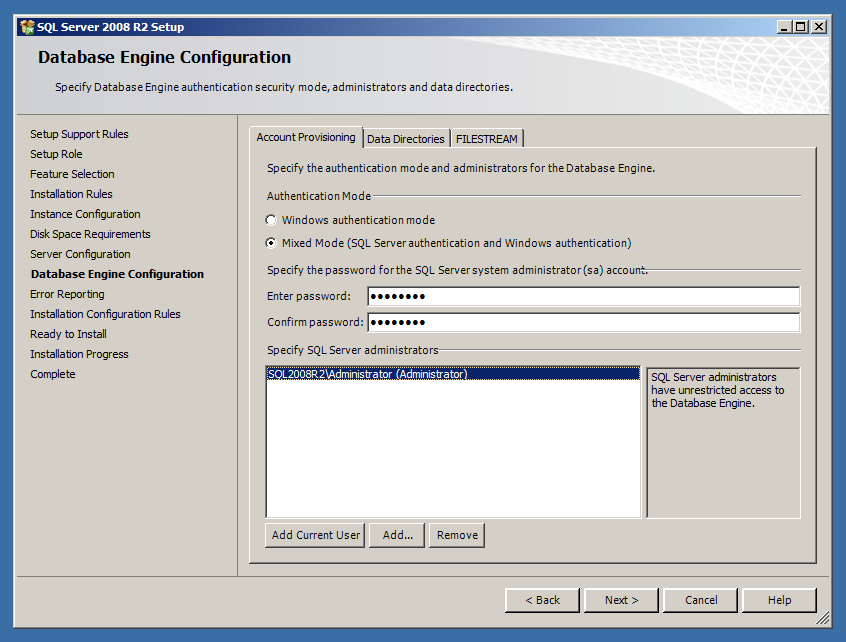
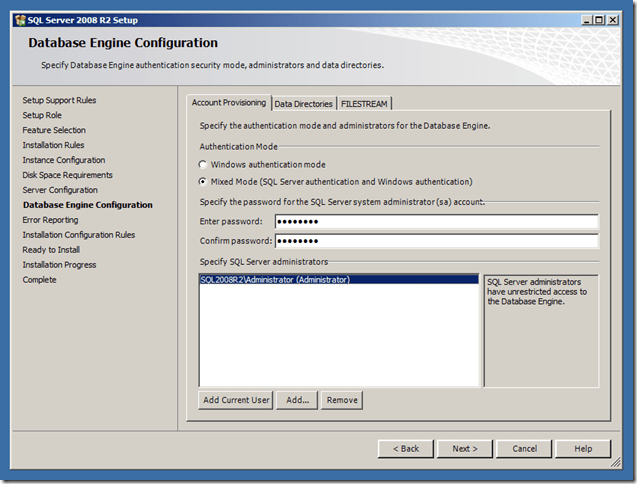
Used Mixed Mode authentication, as we will be again using SQL user account for database.
image
image
Once the setup is complete, set the memory consumption settings under Server properties / Memory. I set it to use 640MB as I am using only 1GB for this server.
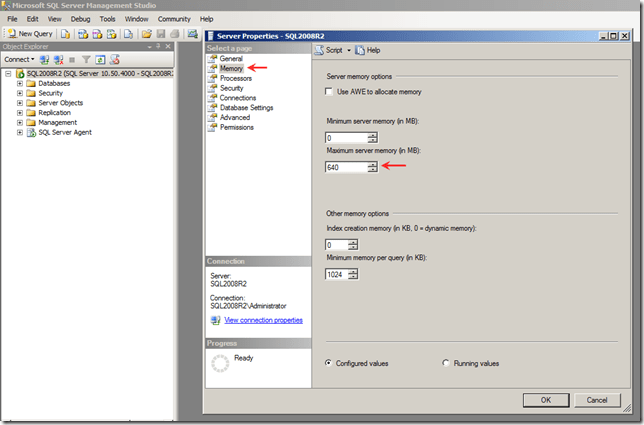
image.

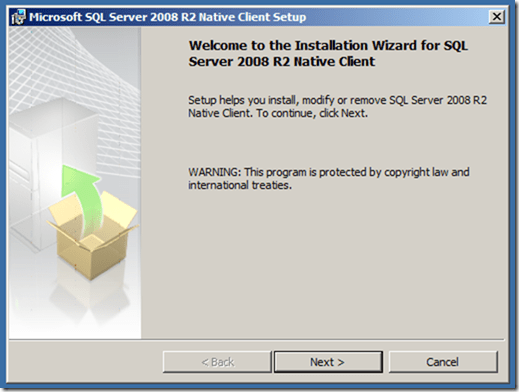
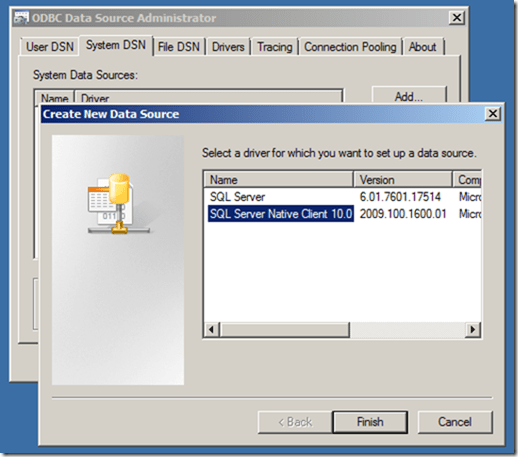
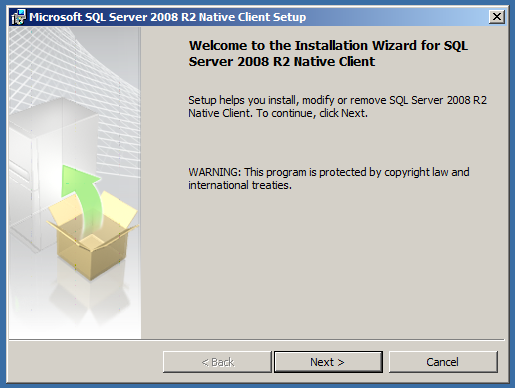
Lets move to vCenter5 server, very 1st we will enable .Net 3.5 feature and Install SQL 2008 R2 Native Client x64 so what we can create a x64 bit DSN to connect to database on SQL2008R2, which is a requirement to connect vCenter to SQL.
image
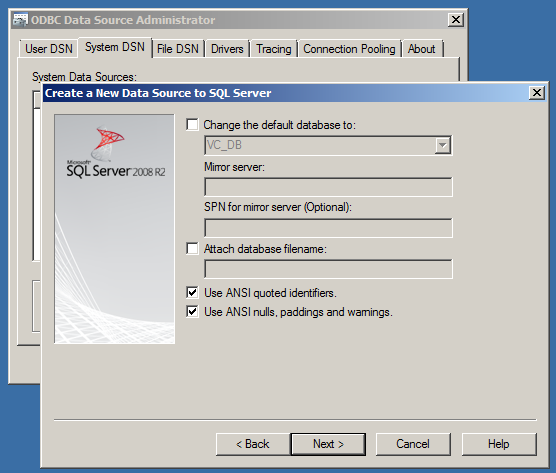
If you check the ODBC / System DSN and create a new DSN you will not find the Native Client, for that you need to install it.
image
image
image

We will create the ODBC DSN later.
So, we have checked what we have got in hand..


Lets Move the Database now!!

At present virtual center database is served by a SQL 2005 server which is on x86 platform. We need to move it on SQL 2008 R2 x64 on x64 platform.

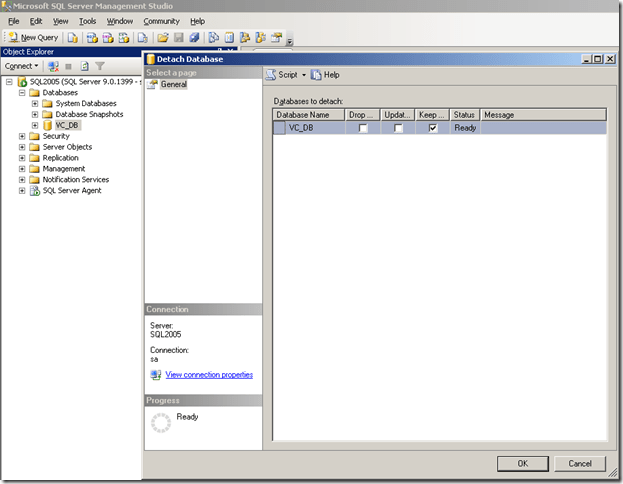
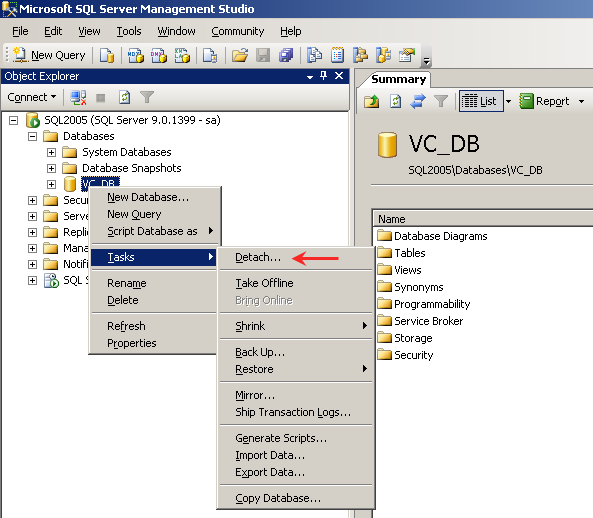
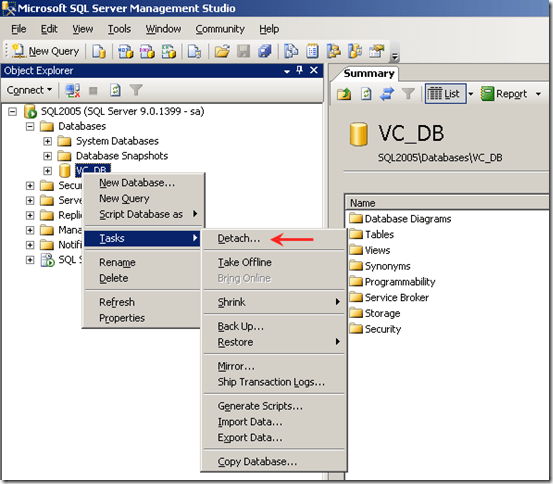
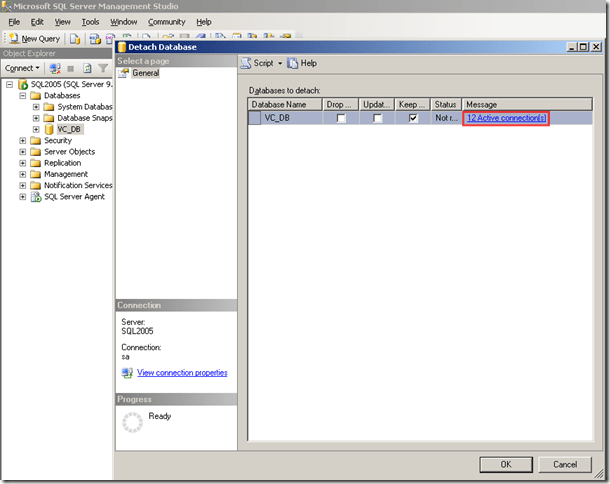
Let us go to SQL2005 server and detach the database.
image
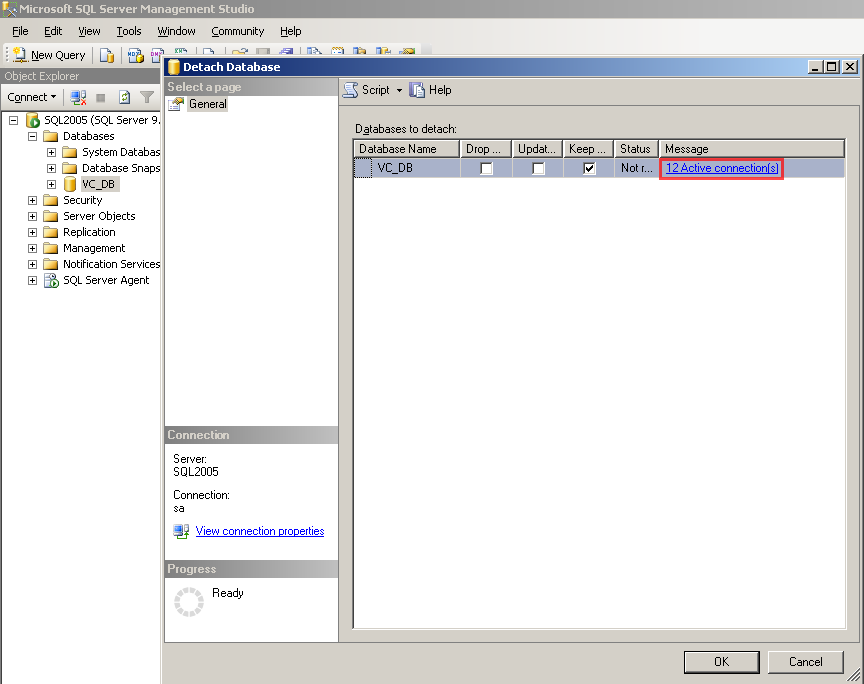
Note: When you try to detach, you will see the Database is still in use. Check the Message column, it says “12 Active Connections”
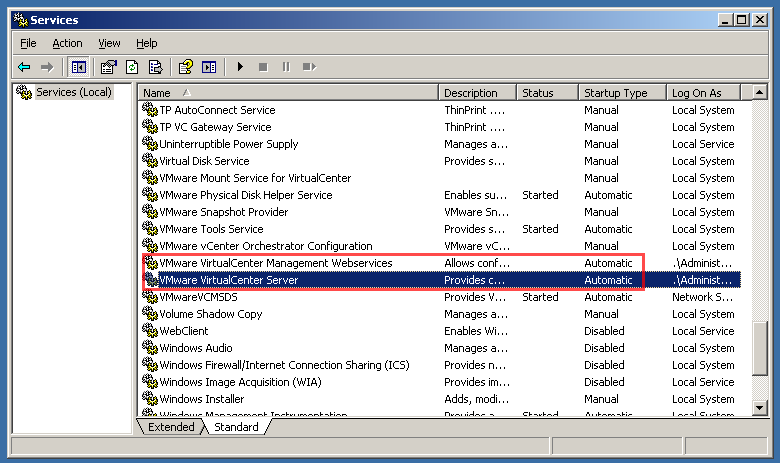
This means the virtual center server is using the database, hence we need to stop the virtual center services before we move ahead.
image
image
image
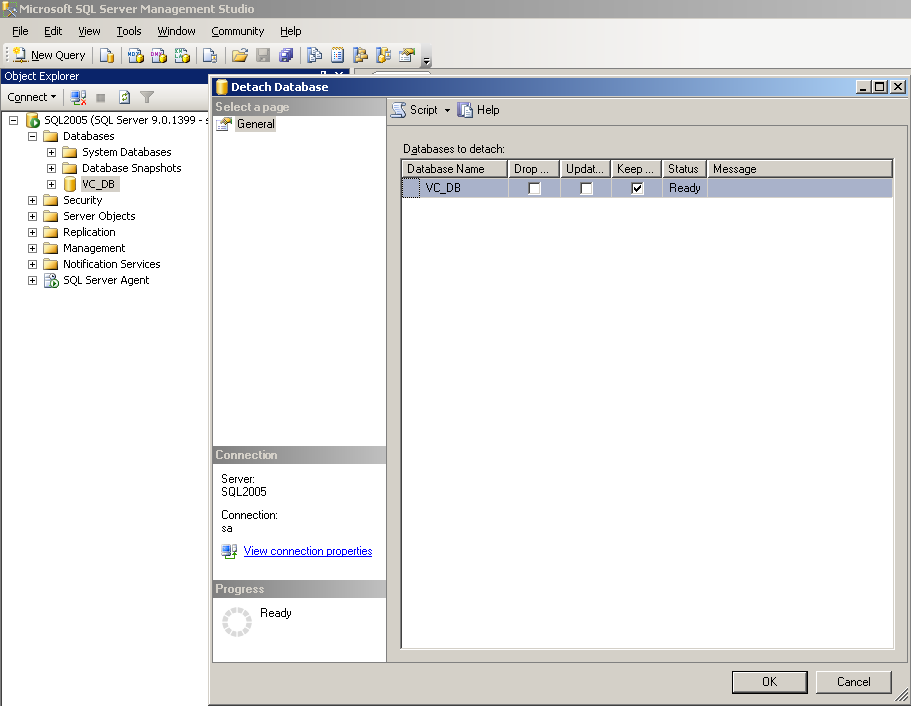
Once the database is detached, it will not appear under databases section in left panel.

Now, browse to the location where the database files were located.
The default installation will save the files under C:\program files\Microsoft SQL server\MSSQL.1\MSSQL\Data
From here we need to copy VC_DB.mdf and VC_DB_log.ldf files to SQL 2008 R2 server.
image
On SQL2008R2 server, I copied the files to default location.
image

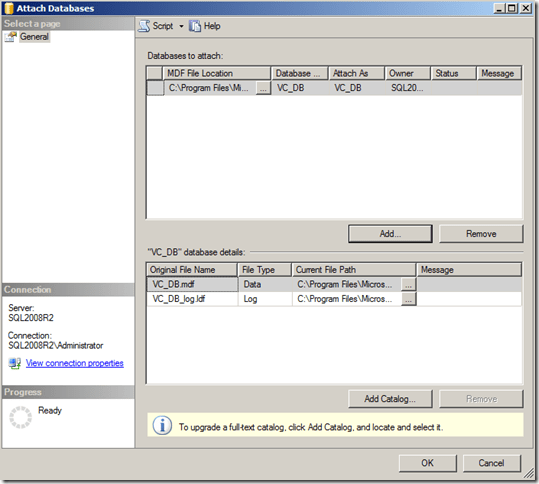
Open SQL Server Management studio on SQL2008R2 server and Attach the copied database.
image
image
image
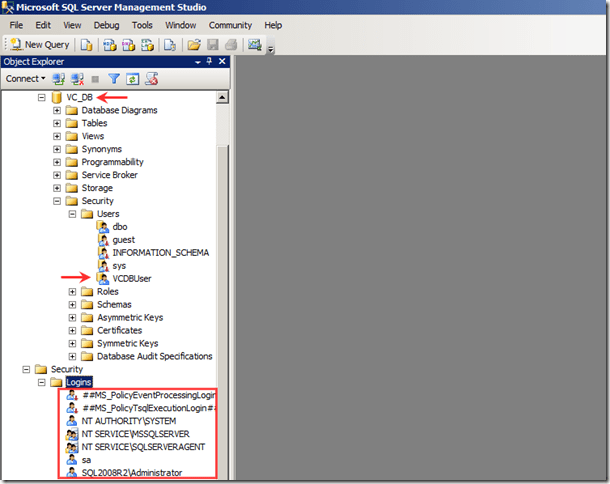
As you can see, VC_DB database is attached.
If we check the Users folder we find user “VCDBUser” associated with the database, but it is not available under “Logins” folder.
Delete the User VCDBUser which is associated with database.
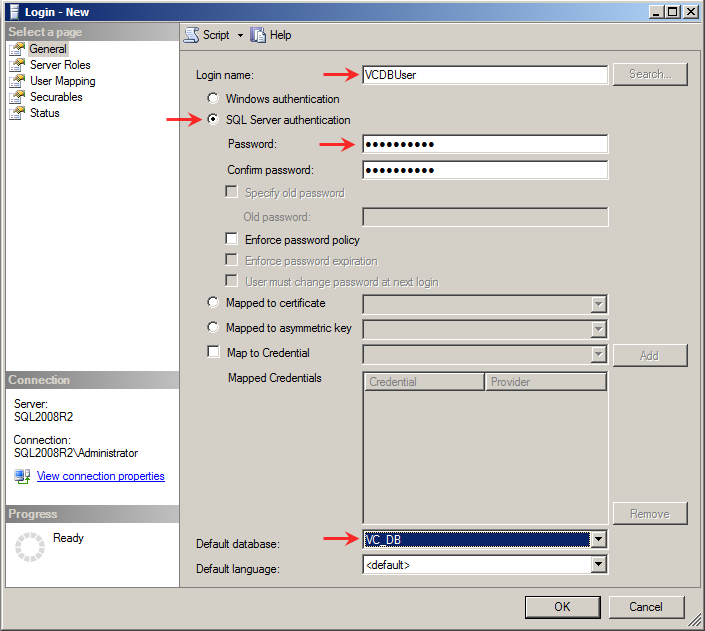
I will create the user VCDBUser with same password as I had before.
image
User “VCDBUser” with SQL Authentication and Default database set to VC_DB.
image
image
image
Now, we will create a ODBC DSN on vCenter5 Server.
image
image
Here you can see the Database that is selected by default is showing “VC_DB” coz we have associated the VCDBUser with this database, which is correct.
image
image
We have successfully moved the database from SQL 2005 to SQL2008 R2.


Virtual Center Server Configuration Backup

On Virtual Center server (vCenter4) insert vCenter DVD.
Create a directory named “DataMigration” on C Drive.
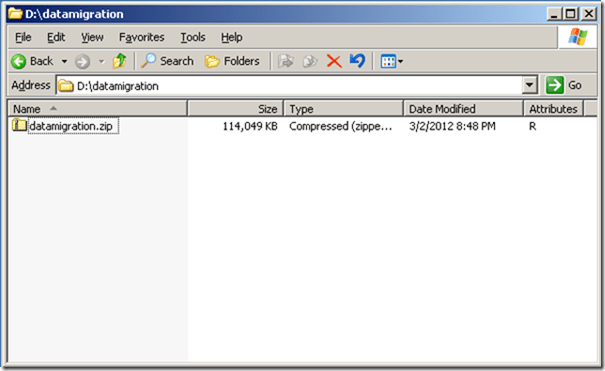
Browse the DVD and extract the content of datamigration.zip found under D:\datamigration folder.
image
image
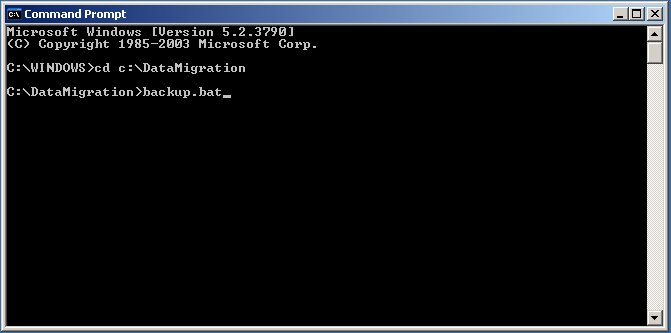
Start the Command Prompt with administrator rights and run Backup.bat.
image
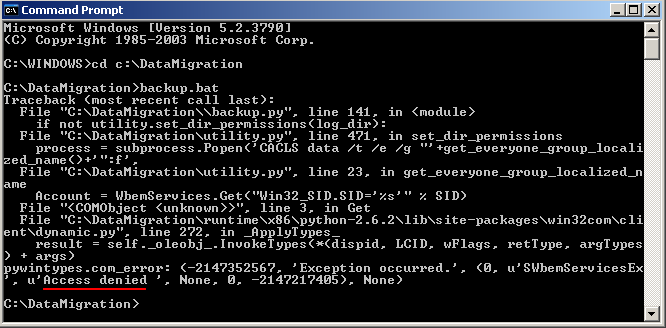
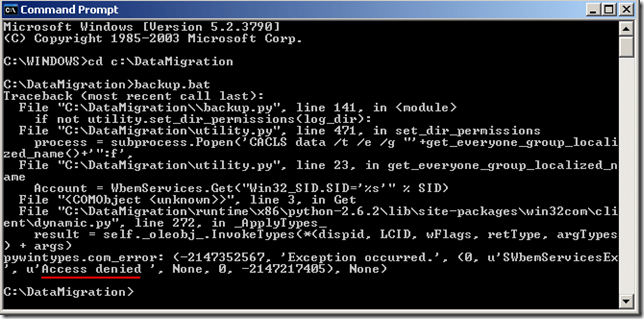
If you get the error similar to this, that means the Command Prompt did not start with Full Administrator privilege.
SCRN-CAP-0050
Make sure to Right Click CMD and select Run As… and UNCHECKRun this program with restricted access
SCRN-CAP-0052
Now run Backup.bat again.
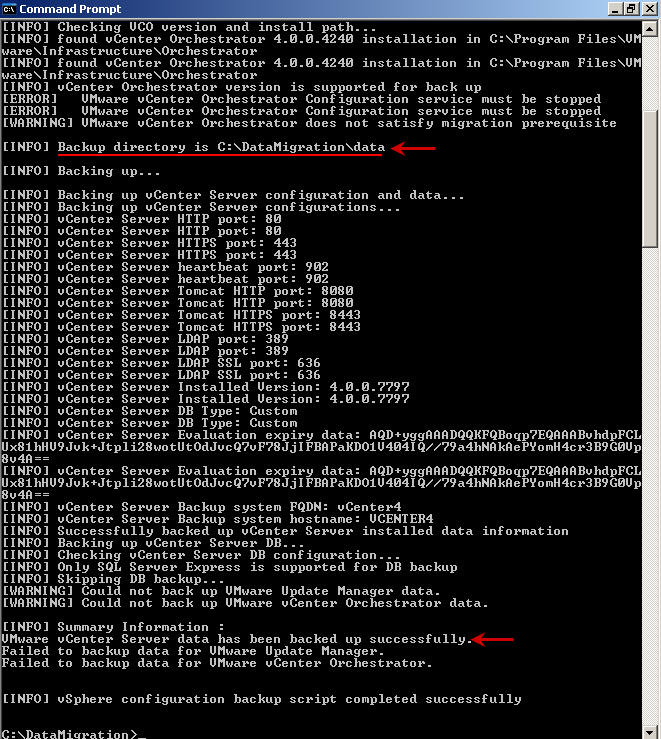
image
The backup is created successfully.
image
The Configuration backup is done!.

vCenter Server 5 Installation


Now, Copy DataMigration folder from Virtual Center server to vCenter5 server, put it on C drive.
On vCenter5 Server, run Command Prompt with administrator rights.
Put vCenter 5 DVD.

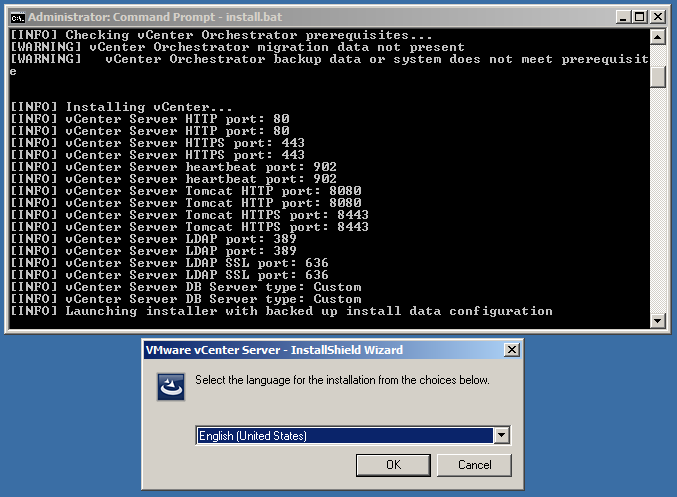
From CMD go to directory C:\DataMigration and run “Install.bat
image
It will prompt that the name of system is different than the original. type Y to continue.
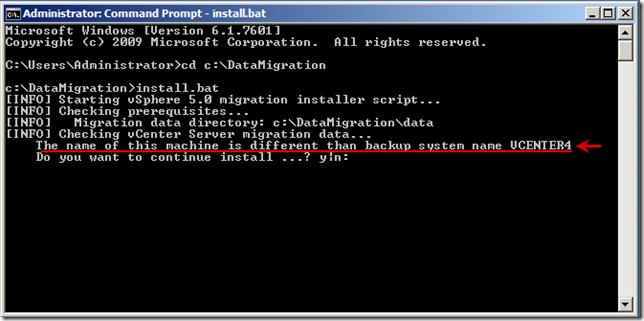
image
It will prompt to enter the Path for media. Type D:\
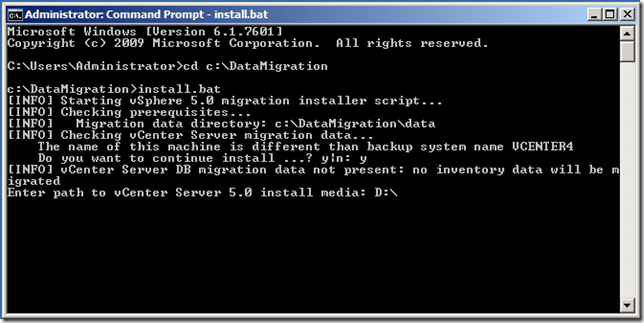
image
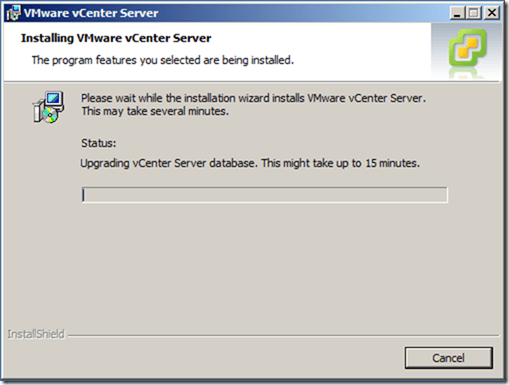
Installation of vCenter will start.
image
Continue the setup, it will ask for ODBC DSN. Select the DSN from dropdown that we created before.
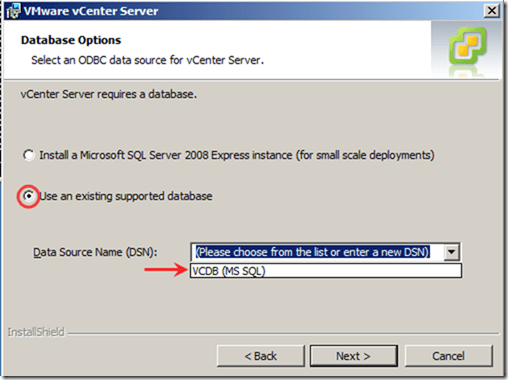
image
Enter the password for the username VCDBUser
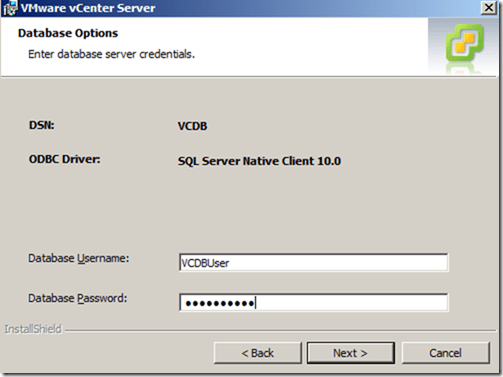
image
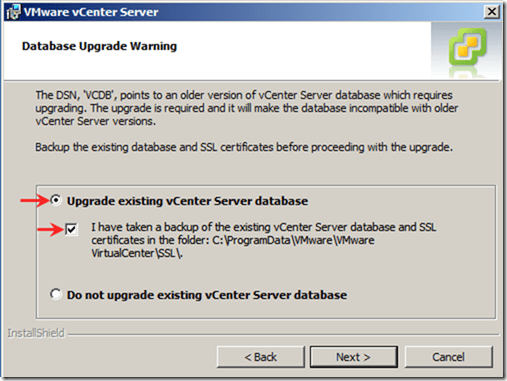
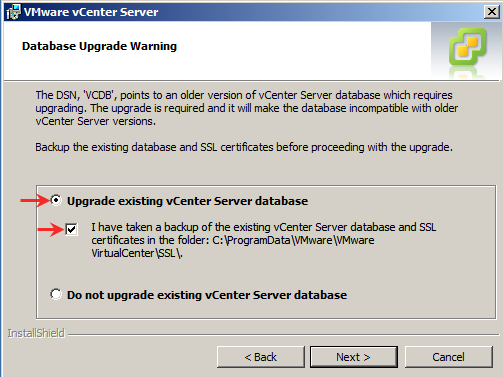
Select “Upgrade existing vCenter server database
image
image
In production, you should put the Service Account username and password that you have created for vCenter service.
image
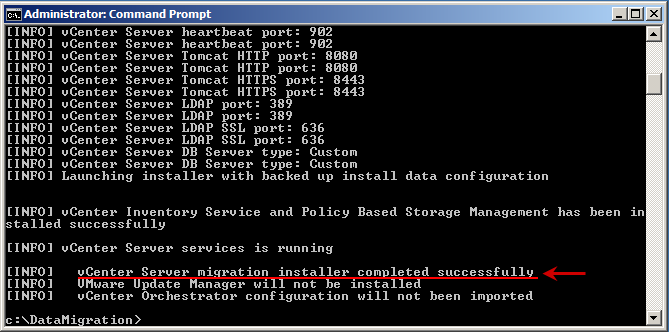
Continue with the setup. This takes time so be patience.
image
image
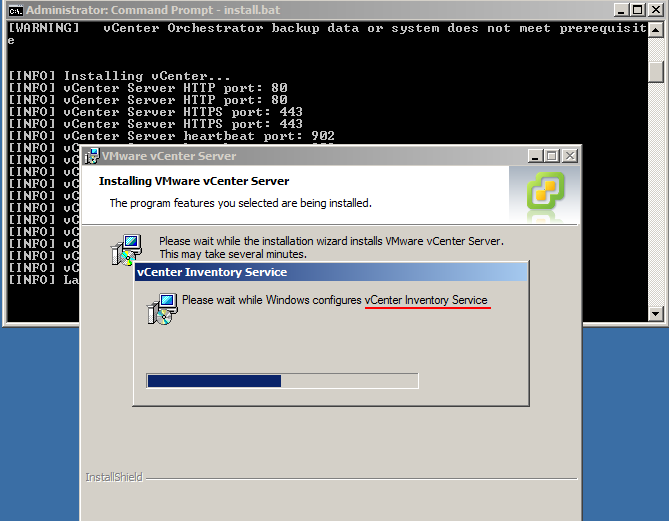
The Installation will continue with “vCenter Inventory Service”
image
image
image
Upgrade vSphere Client on XP/Win7 workstation using vCenter server 5.0 media.
image
That’s it. Smile.
Troubleshoot Event ID 680

Troubleshooting Event ID 680 sometimes gets really tricky and I haven’t came across a good article which has described the process on how to start.

Many a times users account will keep on getting locked-out, there are few possibilities for this, like:

1. User save domain account username and password, and when the password is changed the saved credentials are not updated, the application which is using saved credentials is still sending the old password for authentication, but domain controller says I don’t have this credentials and the account lock-out.

2. User (IT admin) logs on the server via RDC and forgets to logoff. There are group policy (not sure which one, will update on this later) to logoff the user session after specified time period. In case if the GPO is not in place and the connect is disconnected instead of logging Off, and again the password change occurs, the account keeps locking out.

3. The scenario which I will document in this article is related to “Logon As” account for services.

Lets check what exactly is happening here.

Event Type:    Failure Audit
Event Source:    Security
Event Category:    Account Logon
Event ID:    680
Date:        10/31/2012
Time:        9:52:59 AM
User:        NT AUTHORITY\SYSTEM
Computer:    HQDC1
Description:
Logon attempt by:    MICROSOFT_AUTHENTICATION_PACKAGE_V1_0
Logon account:    nadeem
Source Workstation:   
Error Code:    0xC0000064

Image-0016

The Error Code mentioned in Description says, “User name does not exist” Refer (http://www.ultimatewindowssecurity.com/securitylog/encyclopedia/event.aspx?eventid=680)
The user account is nadeem. (one of the admin who was responsible for server hardware health check).

Source Workstation is Blank!!.. now how to track this event, from where the authentication is taking place?

To start troubleshooting we will 1st enabled the Logging of “NetLogon” service.
Logging has to be enabled on Domain Controller on which the event is getting logged, as the authentication is taking place on DC.

To enable Logging, go to command prompt and run:

nltest /dbflag:0x20000004

And restart “NetLogon” service

net stop netlogon
net start netlogon

Image-0013

Now, go to the location “C:\windows\Debug”
Here you will find “NetLogon.log” file, this is where the logging will recorded.
You can see in the log file, we can see the user authentication request is coming from a server named “HQANTIVIRUS”
Image-0014

So, we got the source server and its time to logon to the server and check it.

TIP: as soon as you logon check “Processes”tab under “Windows task manager” and find the Username along with the corresponding executable which is issuing authentication request

In this case, what I found was “hpsimsvc.exe” was showing username as “nadeem”

Next, I check the services.msc and found out the service is Logged on as “nadeem”
nadeem

Once, you fix this, the event will not show up Smile.

Let us disable the logging of NetLogon.
From command prompt run:

nltest /dbflag:0x0

And restart “NetLogon” service

net stop netlogon
net start netlogon

Image-0017

Exchange 2010 Certificate error The Certificate Status could not be determined because the revocation check failed

This guide is for a Lab environment scenario where we have Exchange 2010 setup and we need a certificate to make OWA / Autodiscover work in Lab.
When we Install a RootCA (standalone) and generate a certificate for our use initially it works without issues until the certificate is imported in Exchange and get the error “The Certificate status could not be determined because the revocation check failed”
Image-0165
This happens coz of CRL Distribution Point URL, which are configured under the CA server properties / Extensions tab and Certificate Revocation settings.

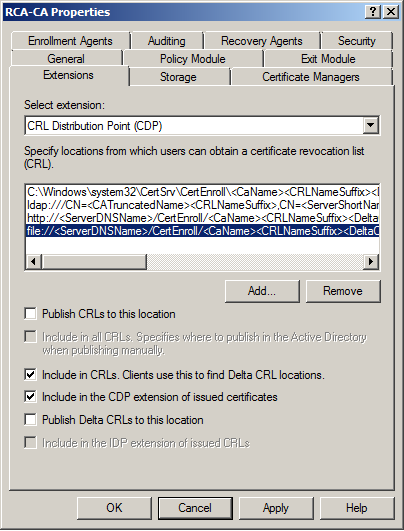
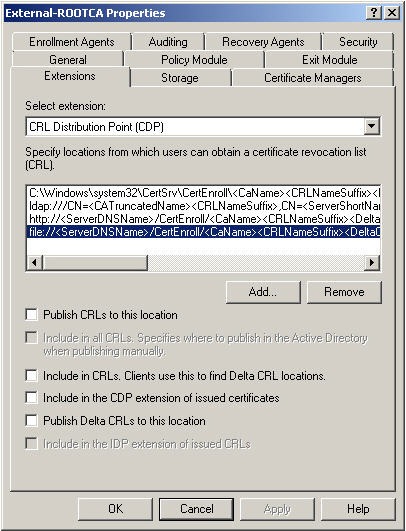
This is the default settings for “Extensions” on Root CA server. (screenshots taken from a another Server)

imageimage
imageimage

This is the default settings for CRL on Root CA server. Right click “Revoked Certificates” Node and select properties.
imageimage

Lets change these values to work for us.
1st Step, we will set the Configuration Naming Context which will be used in the CRL path.
Start Command Prompt (CMD) and run the following 1 line commad:

certutil –setreg CA\DSConfigDN CN=Configuration,DC=vhomelab,DC=com

Replace DC=vhomelab,DC=com to your domain name.

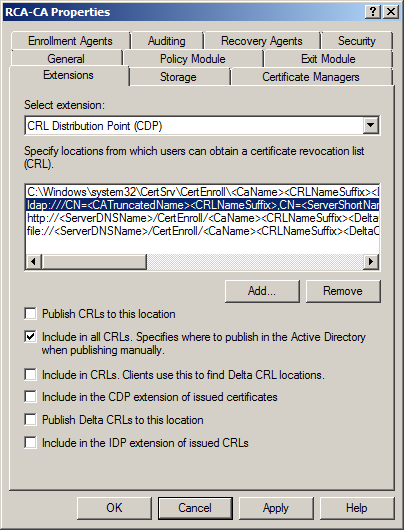
2nd step, we will change the settings under “Extensions” tab.
Image-0184Image-0185

Image-0186Image-0187
3rd Step, change settings under “Revoked Certificates” properties.
Image-0188
Now, restart the certificate service.

Again right click “Revoked Certificates” and select “Publish” from “Tasks”
This will publish the new CRL with the changes that we made.

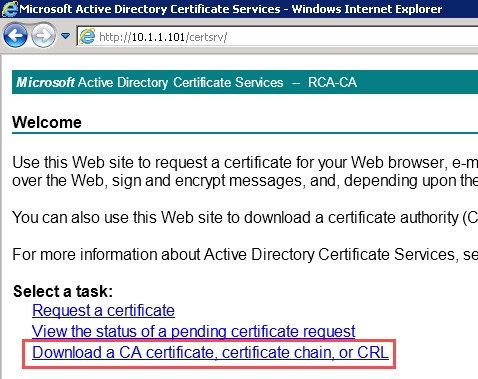
Now, go to the Domain Controller and browse the Certificate server using browser (http://YourRootCA/certsrv) and download “CA Certificate” and CRL. (save it on C:\)
Image-0171

From CMD, execute 2 commands: Certutil –addstore –f Root RootCert.cer and Certutil –addstore –f Root RootCRL.crl
Image-0192

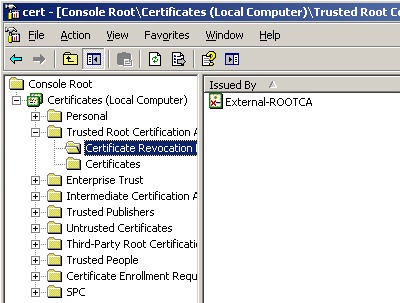
This will add Root Certificate and CRL to trusted Root Certificate on DC.
Image-0191Image-0193
Now we will publish the Root Certificate and CRL to AD DS using commands as follows.

Certutil –dspublish –f RootCert.cer RootCA

and

Certutil –dspublish –f RootCRL.crl

Image-0194Image-0195


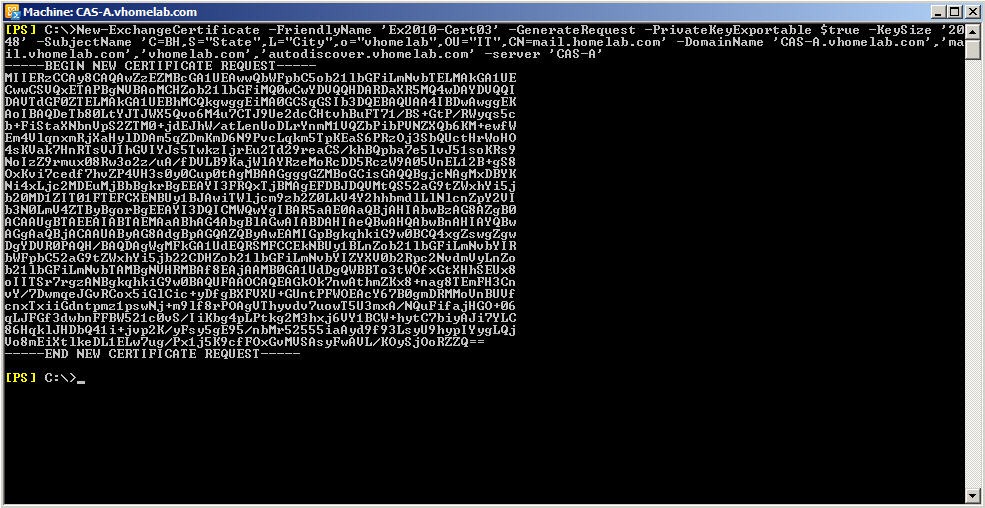
Now, generate a certificate request from from Exchange Management Shell. (you can use GUI as well)
New-ExchangeCertificate -FriendlyName ‘Ex2010-Cert03’ -GenerateRequest -PrivateKeyExportable $true -KeySize ‘2048’ -SubjectName ‘C=BH,S=”State”,L=”City”,O=”vHomelab”,OU=”IT”,CN=mail.vhomelab.com’ -DomainName ‘cas-a.vhomelab.com’,’mail.vhomelab.com’,’vhomelab.com’,’autodiscover.vhomelab.com’ -Server ‘CAS-A’
Image-0196

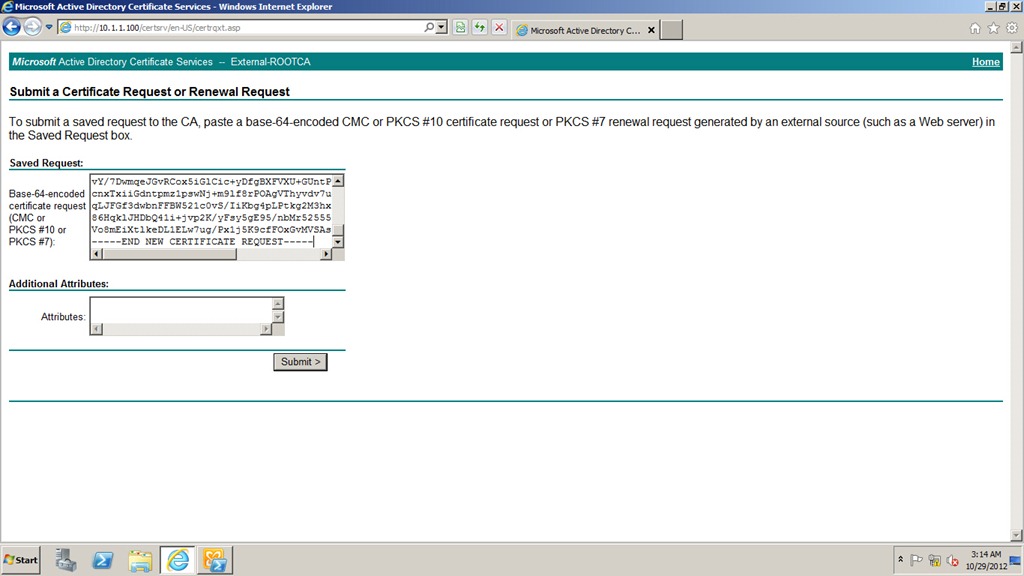
Request from a certificate.
Image-0197

Complete the certificate request in Exchange Management console.
Image-0198
And, Done!.
Image-0199
If you check the certificate by double clicking it, and under details, see the CRL distribution points,
1st, the command that we ran for Configuration Naming Context, that was to get the CRL path configured properly as shown below.
Image-0200

Hope this has helped you in some ways.